Skip to content
PDF Tools Japan

Split PDF – Extract Pages or Split into Single Pages, Free

Run by

To pull out the pages you need or split a PDF into single pages, use this free page. The tool copies pages as they are, so quality doesn’t drop, and you can download several files together as a ZIP (up to 100MB per file).

  • Completely free
  • No sign-up
  • Files are never uploaded
  • Works on phones

Up to 100MB / Files are never uploaded / No sign-up

Your files are processed in your browser and are never uploaded to a server.

A free online tool that splits a PDF by page range, extracts only the pages you need, or turns every page into its own PDF, with no app to install. You work with page thumbnails, and you can download the PDFs you create together as a ZIP. The tool processes your PDF in your browser and never uploads it. The tool copies pages as they are, so quality doesn’t change.

How to split a PDF

  1. 1Tap “Select PDF file”, or drag and drop a PDF.
  2. 2Choose a split method: split by page ranges, select pages to extract, or split every page.
  3. 3Enter page ranges, or tap thumbnails to select pages.
  4. 4Download each PDF, or tap “Download all as ZIP”.

What to do next

Supported files and limits

Supported files
One PDF file (.pdf)
You get
The split PDFs (the tool saves several files together in one ZIP file)
File size
Up to 100MB per file
Good to know
  • The tool can't process password-protected or edit-restricted PDFs. Remove the password first with Unlock PDF.

Three ways to split

Choose the method that fits what you need.

Split by page ranges

Enter ranges like “1-3, 4-6, 7-” to create a separate PDF for each range. “7-” means from page 7 to the end. The tool also reads full-width numbers and Japanese commas correctly.

Select pages to extract

Tap thumbnails to select pages and combine them into one PDF. You can extract pages that aren’t next to each other, such as pages 2 and 5, together. Handy when you only want to send part of a document.

Split every page

Turns every page into its own PDF. File names include the page number, so the order stays clear.
Splitting step by step (screenshots)

1. Pick the pages to keep (Extract pages)

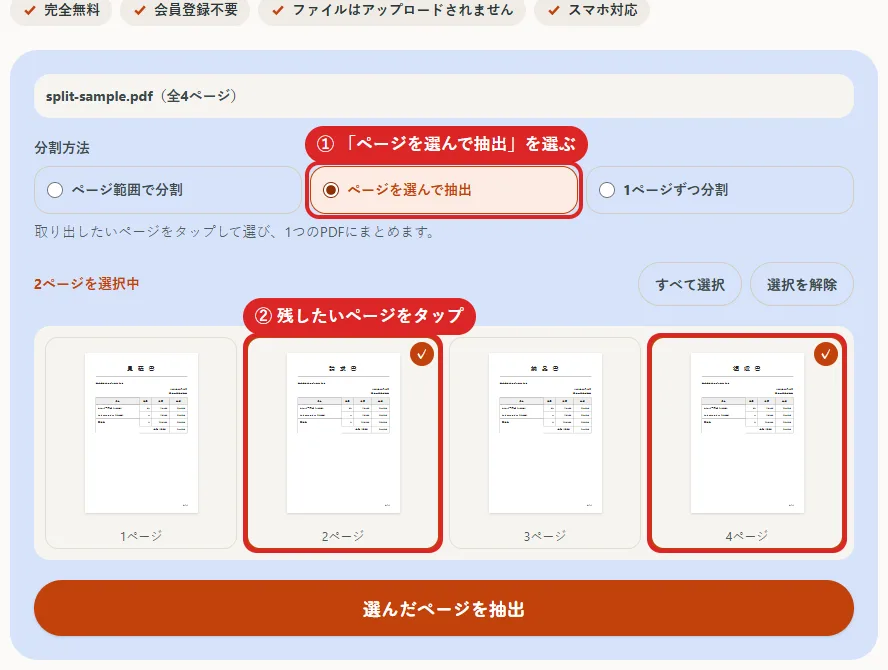
Choose “Extract pages” and tap the thumbnails of the pages you want. Selected pages get a check mark, and the tool saves them together as one PDF.

Extract mode selected, with pages 2 and 4 tapped (Japanese screen)

2. Type page ranges (Split by range)

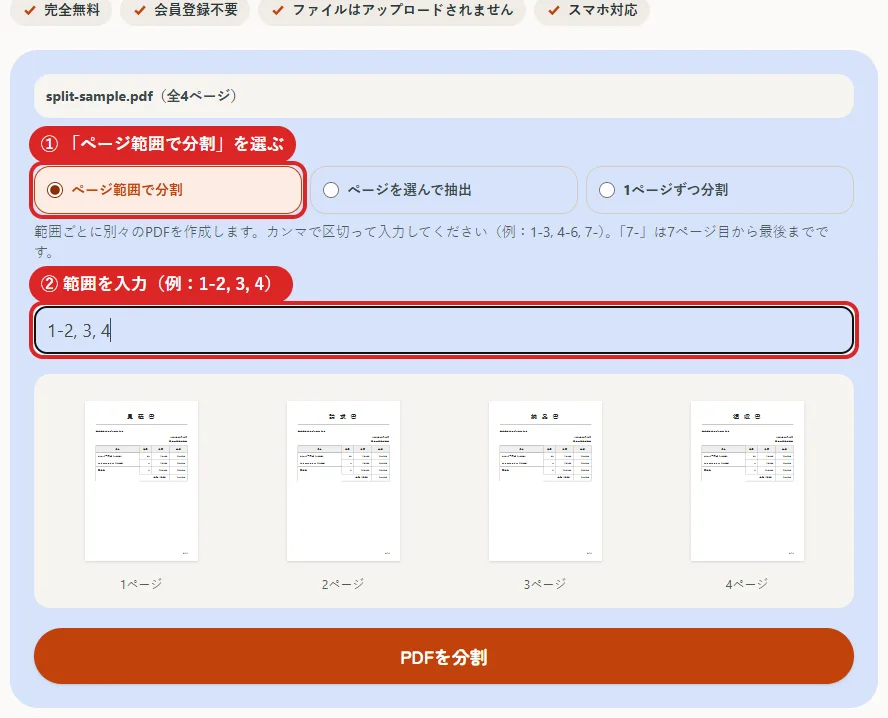
Choose “Split by range” and type ranges separated by commas, such as “1-2, 3, 4”. This example makes three PDFs: pages 1–2, page 3 and page 4.

Split by range selected, with “1-2, 3, 4” typed in the range box (Japanese screen)

3. Save them as one ZIP

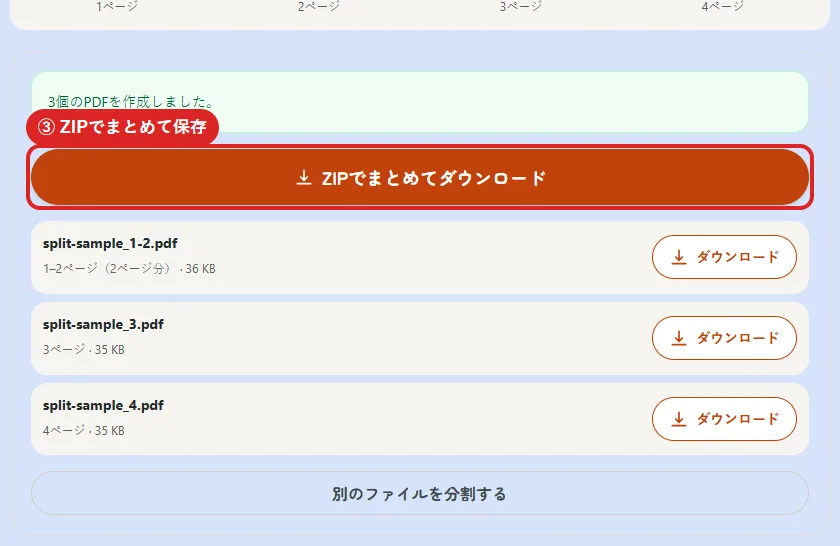
When the tool makes two or more PDFs, “Download all as ZIP” saves them in one ZIP file. To save them one by one, use each file's Download button.

The result: three PDFs, a Download all as ZIP button and a download button for each file (Japanese screen)

When splitting helps

  • Share only the pages you’re responsible for
  • Separate a batch scan into one file per document
  • Meet applications that ask for each document as a separate file
  • Split a file that’s too large to submit as one

Quality stays the same

The tool makes the new PDFs by copying pages from the original as they are, with no image re-compression. Quality doesn’t change, and you can still select and search the text.

Related tools

To remove unwanted pages instead of splitting, use Delete PDF Pages. To change page order, use Reorder PDF Pages. To split scanned two-page spreads into single pages, use Split Two-Page Scans.

Your files never leave your device

The tool doesn’t upload your PDF to a server; it splits it in your browser. Confidential documents are safe to use.

Splitting a PDF on iPhone and Android

You don’t need an app. Open this page in Safari or Chrome and pick a PDF from Files or an email attachment. You can tap thumbnails to select pages, so it works well on a phone. You can save several PDFs together as a ZIP. If you can’t open ZIP files, download them one at a time.

Japanese applications that want separate files

Japanese online applications, such as university admissions, job portals, visa and residence procedures and city office forms, often ask for each document (passport copy, certificate, résumé) as a separate PDF, each under a size limit. If you scanned everything into one PDF, split it here by page range into one file per document. If a file is still too large, use Compress PDF.

Other ways to split a PDF

In Google Chrome or Microsoft Edge, you can open the PDF, choose “Save as PDF” as the printer and enter a page range to save some pages as a new PDF. But it makes only one file at a time, so splitting every page means repeating it for each page. On a Mac, you can drag thumbnails from Preview to the desktop. The free Adobe Acrobat Reader has no split feature.

This tool creates a file for each range or each page in one go and saves them all as a ZIP.

Frequently asked questions

Q. Is it free?

A. Yes. It’s free with no usage limits, and the tool adds no watermark.

Q. How do I enter page ranges?

A. Separate them with commas, like “1-3, 5, 8-”. “8-” means from page 8 to the end. Full-width numbers work too.

Q. Can I combine selected pages into one PDF?

A. Yes. Choose “Select pages to extract” and tap thumbnails to choose pages.

Q. Can I extract pages that aren’t next to each other?

A. Yes. In “Select pages to extract”, pick pages such as 2 and 5, and they’re combined into one PDF.

Q. Can I turn every page into its own PDF?

A. Yes. Choose “Split every page”. Each file name includes the page number.

Q. Can I split by file size (MB)?

A. Only by pages. If there’s a size limit, split by page ranges, or make the file smaller first with Compress PDF.

Q. Can I split a PDF in Google Chrome?

A. Choose “Save as PDF” in the print dialog and enter a page range to save some pages. To make several files at once, or one file per page, this tool does it in one step.

Q. Does splitting lower the quality?

A. No. The tool copies pages as they are, so quality doesn’t change.

Q. Can I save all the split files at once?

A. Yes. When the tool creates several PDFs, you can download them together as a ZIP.

Q. What happens if I enter the same range twice?

A. The tool creates two PDFs with the same pages and numbers their file names to tell them apart.

Q. Is my PDF uploaded to a server?

A. No. It’s processed in your browser and never sent to a server.

Q. Does it work on a smartphone?

A. Yes. You can tap thumbnails to select pages.

Q. Do I need to sign up?

A. No. Just open the page and start using it.

Q. Does it work with password-protected PDFs?

A. No. It doesn’t work on password-protected PDFs or PDFs with editing restrictions. Remove the restriction first, then try again.

Was this tool helpful?

Rate from 1 to 5
No ratings yet