Adobe Acrobat Reader is for viewing, printing, filling in and signing PDFs. Editing pages, such as deleting or reordering them, is only in “Organize Pages” in the paid Acrobat Pro.
So to delete pages for free, you need another app or tool.
Blank pages from double-sided scanning, internal notes the recipient doesn’t need, pages unrelated to a submission: removing a few pages from a PDF is a common job. But the free Adobe Acrobat Reader has no way to delete pages. This guide compares the free ways to delete PDF pages on each device, and what to watch out for when removing pages with personal information.
Use Delete PDF PagesFree, no sign-up. Your files stay on your device.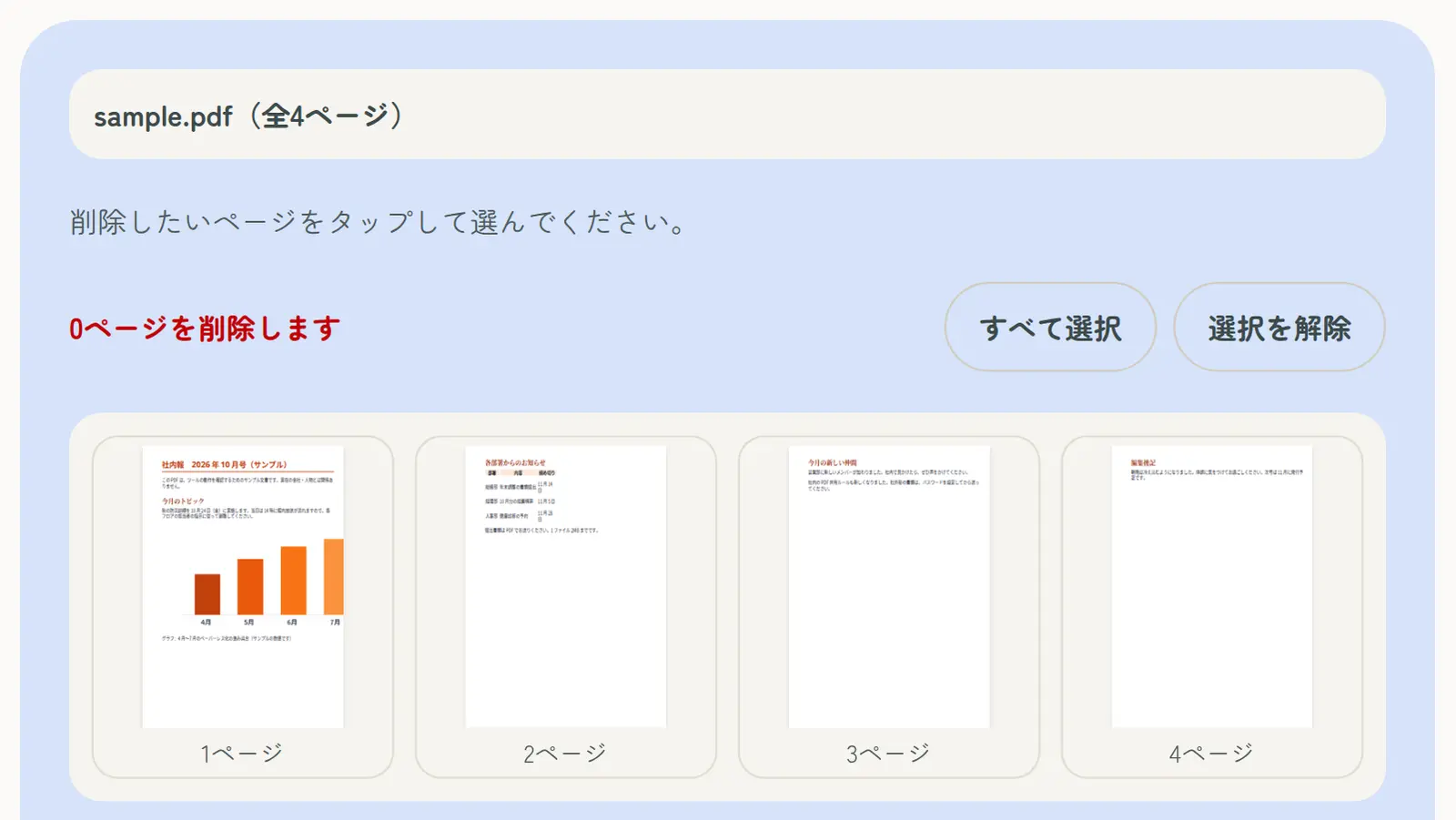
Adobe Acrobat Reader is for viewing, printing, filling in and signing PDFs. Editing pages, such as deleting or reordering them, is only in “Organize Pages” in the paid Acrobat Pro.
So to delete pages for free, you need another app or tool.
| Method | Devices | Best for |
|---|---|---|
| Mac Preview | Mac | Deleting a few pages on a Mac |
| iPhone Files app | iPhone and iPad | Deleting a page or two on a phone |
| Save only the pages you keep from a print dialog | Any | Keeping only a few pages |
| This site’s Delete PDF Pages | Any device (browser) | Choosing several pages from thumbnails and deleting them at once |
Open the PDF in Preview and choose View → Thumbnails. Select the pages to delete (Command-click to select several), press Delete, then save.
Open the PDF in the Files app and show the page thumbnails by swiping in from the left edge or long-pressing a page. Long-press the thumbnail of the page to delete and choose Delete. The change is saved to that file, so duplicate it first if you want to keep the original.
Open the PDF in Chrome or Edge, set the print destination to “Save as PDF” and enter only the pages you want to keep. Phone print dialogs can do the same.
Links and bookmarks may be lost, and it doesn’t work on print-restricted PDFs. With many pages and scattered pages to remove, typing the page list gets tedious.
This site’s Delete PDF Pages shows every page as a thumbnail, so you can see exactly what you’re deleting. It works on Windows, Mac, iPhone and Android, and your PDF is never uploaded.
When you remove a page such as a copy of your My Number card before sending a PDF, it matters that the page is really gone from the file. Hiding a page or covering it with a white box can leave the original content inside the PDF.
Delete PDF Pages builds a new PDF from only the pages you keep, so nothing from the deleted pages is in the file. Before sending, open the new PDF and check the pages are gone.
To change the page order, use Reorder PDF Pages; to make the file smaller, use Compress PDF; to take pages out into a separate file, use Split PDF.
A. No. Deleting pages is an Acrobat Pro feature. Mac Preview, the iPhone Files app and this site’s Delete PDF Pages can do it for free.
A. Yes. In Delete PDF Pages, tap every page you want to remove and delete them in one go. In Mac Preview, Command-click to select several.
A. Find the blank pages in the thumbnails, tap to select them and delete. Handy when double-sided scanning adds blank backs.
A. On an iPhone, use the Files app. On any phone, including Android, open Delete PDF Pages in your browser; no app needed.
A. Usually, by the size of the pages removed. To shrink it further, use Compress PDF.
A. Not from the new PDF. Keep the original PDF separately.