The free Adobe Acrobat Reader can’t split PDFs. Splitting in Acrobat needs paid Acrobat Pro, and Adobe’s online tool uploads your file to its servers.
The ways compared
| Method | What you need | Files per run | Best for |
|---|---|---|---|
| Chrome or Edge “Save as PDF” | Windows or Mac (browser) | One | Taking out one run of pages |
| Mac Preview | Mac (built in) | As many as you drag | Taking a few pages out on a Mac |
| Phone print feature | iPhone or Android (built in) | One | Saving some pages on a phone |
| Our Split PDF tool | Just a browser (any device) | Many (saved together as a ZIP) | Splitting every page, splitting by ranges, extracting scattered pages |
Method 1: Chrome or Edge “Save as PDF” (Windows and Mac)
The browser already on your computer can save some pages as a new PDF.
- Drag the PDF into Chrome or Edge to open it
- Press Ctrl+P (Command+P on a Mac) to open the print screen
- Set the destination (printer) to “Save as PDF”
- Under Pages, choose Custom and enter the pages to keep, such as “2-4”
- Click Save and choose where to save it
It makes only one file at a time, so splitting into several files, or one file per page, means repeating it for each. Links and some settings may be lost.
Method 2: Take pages out with Mac Preview
Open the PDF in Preview and choose View → Thumbnails. Select the thumbnails of the pages you want and drag them to the desktop to create a PDF of just those pages. Command-click to select pages that aren’t next to each other.
Method 3: Save pages with the print feature on iPhone and Android
Phones can save some pages through the print feature too.
iPhone
Open the PDF in the Files app and tap Share → Print. Set Range to the pages you want, then tap the Share button at the top and choose “Save to Files” to save a PDF of just those pages.
Android
Open the PDF, tap “⋮” → Print, and set the printer to “Save as PDF”. Choose the page range under Pages and tap the download button.
Method 4: Split in your browser (every page, by ranges, or extract)
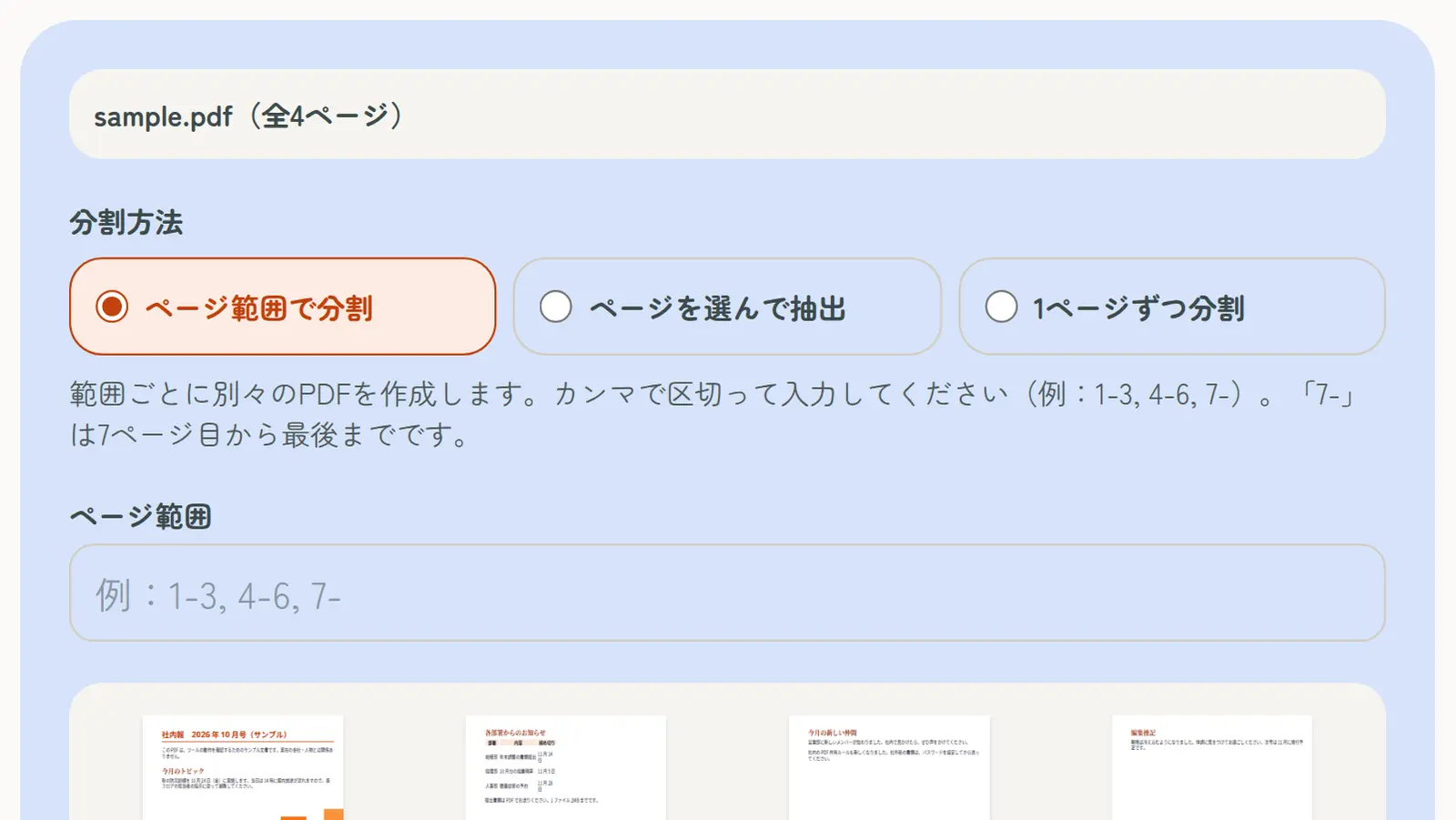
Our Split PDF tool splits into several files in one go, in the browser on Windows, Mac, iPhone and Android. Your PDF is never uploaded to a server; it’s processed on your own device, so confidential documents and personal details stay private.
- On the Split PDF page, select your PDF
- Choose a method: split by page ranges, select pages to extract, or split every page
- Enter ranges like “1-3, 4-6, 7-”, or tap thumbnails to select pages
- Download each PDF, or tap “Download all as ZIP”
Pages are copied as they are, so quality doesn’t change and text can still be selected and searched.
Which method for which job
Send only some pages that aren’t next to each other
In Split PDF, use “Select pages to extract” and pick pages such as 2 and 5 to combine them into one PDF.
Separate a batch scan into one file per document
Use “Split by page ranges” and enter each document’s pages, like “1-2, 3, 4-6”, to get one file per document in one go. This is what Japanese online applications (admissions, job portals, visa and residence procedures, city office forms) usually want: the passport copy, certificates and résumé as separate PDFs.
Split scanned two-page spreads into single pages
To cut each page down the middle, use Split Two-Page Scans.
Just remove unwanted pages
If you only want to delete a few pages, Delete PDF Pages is quicker than splitting.
With a size limit, split and then compress
Online applications and email often limit the size of each file. Splitting works by pages, so you can’t split by file size (MB). If a file is still too large after splitting it by document, make it smaller with Compress PDF.