Skip to content
PDF Tools Japan

How to Submit Year-End Adjustment Certificates as PDFs – Photograph Them and Combine Them into One PDF

Between October and November, employers in Japan ask staff to hand in their year-end adjustment (nenmatsu chosei) forms. More and more companies now ask you to photograph certificates such as the life insurance deduction certificate and upload them to an HR system instead of handing in paper. This article shows how to turn certificates into a PDF with your phone, combine several into one file, and what to do when the upload fails.

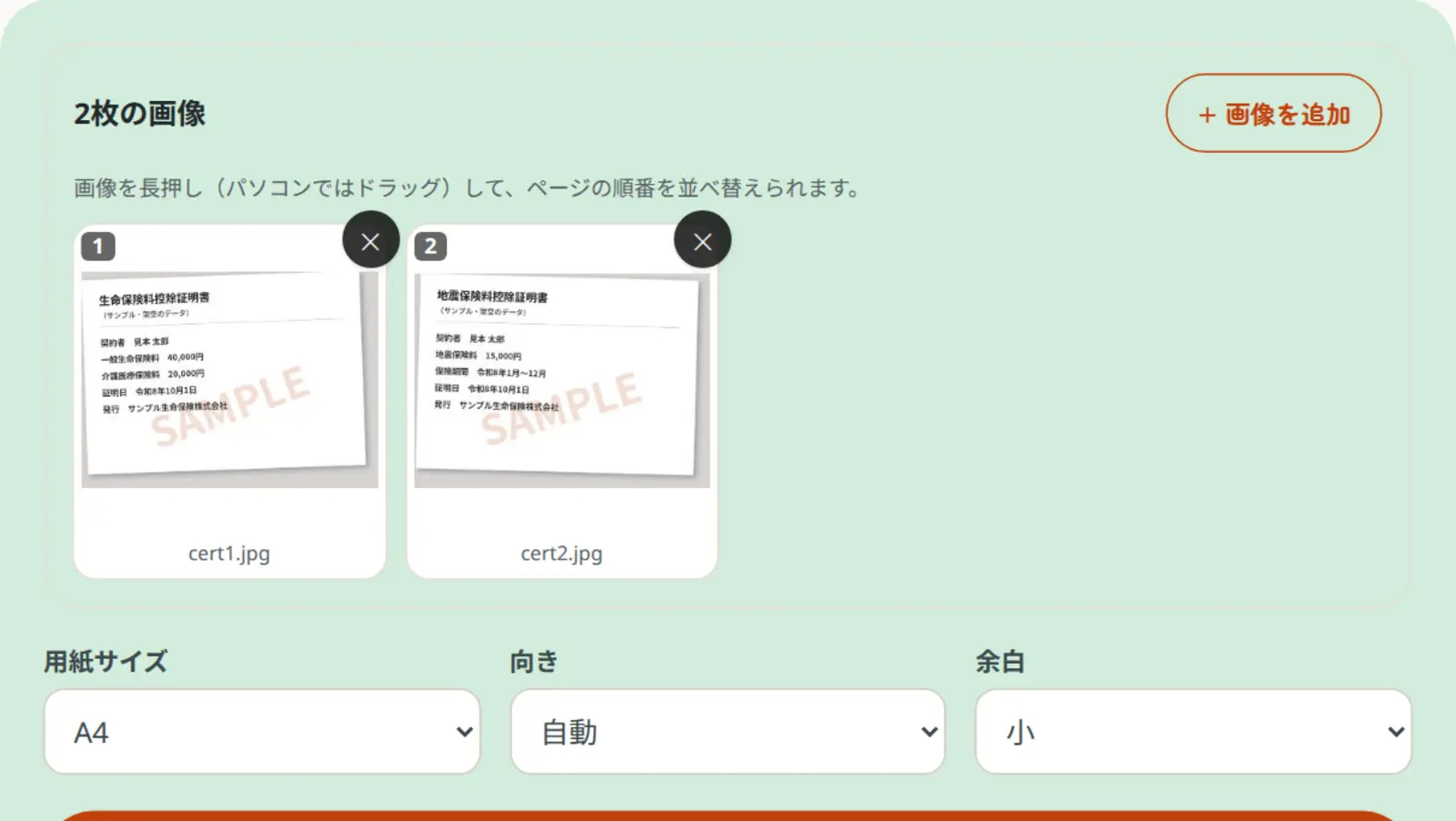
Use JPG & PNG to PDFFree, no sign-up. Your files stay on your device.Screenshot: two sample deduction certificate photos loaded into JPG to PDF

The main documents for the year-end adjustment

For the year-end adjustment, you fill in the forms your employer gives you and, to claim deductions such as insurance premiums, attach the certificates. Which documents you need depends on your situation, so check your employer’s instructions.

The forms and deduction amounts can change with tax reforms. Check this year’s details in the National Tax Agency’s year-end adjustment guide or your employer’s instructions.

Main documents for the year-end adjustment (what you need depends on your situation)
DocumentUsually comes from
Application for (change in) exemption for dependentsYour employer
Application for basic deduction / spouse deduction / income adjustment deductionYour employer
Application for insurance premium deductionYour employer
Life insurance and earthquake insurance deduction certificatesYour insurance company (often arrive in October–November)
Social insurance premium certificates (e.g. National Pension)Japan Pension Service or wherever you paid the premiums
Small-business mutual aid premium certificate (e.g. iDeCo)National Pension Fund Association and others
Housing loan deduction application (second year onward)Tax office and your lender

How you submit depends on your employer

There are three main ways to hand in year-end adjustment documents. Follow your employer’s instructions.

  • On paper: fill in the forms and attach the original certificates
  • Upload to the company’s system: enter the forms online and attach the certificates as photos or PDFs
  • As electronic data: receive the certificates as data from your insurer and import them into the National Tax Agency’s year-end adjustment app (nencho soft) or compatible software

This article focuses on the second way: attaching certificates as photos or PDFs.

Photographing certificates and turning them into a PDF

If your company’s system asks for certificates as PDFs, prepare them in this order:

  1. Lay the certificate flat in good light and photograph it from straight above, without shadows
  2. If the system doesn’t accept iPhone photos (HEIC), convert them to JPG first
  3. Turn the photos into a PDF with JPG to PDF. Several certificates can go into one PDF
  4. Fix sideways pages with Rotate PDF
  5. Open the PDF and check that your name, the premium amounts and the issuer are clearly readable

If you select several photos when making the PDF, you get one PDF. If you already have separate PDFs, combine them with Merge PDF.

When the upload fails (file too large or wrong format)

Some company systems set limits such as “up to 2MB per file” or “PDF or JPG only”.

  • File too large: use Compress PDF and set the target size to the system’s limit. Compressing too much can make the amounts hard to read, so check afterwards
  • Wrong format: convert iPhone photos (HEIC) to JPG with HEIC to JPG. If only PDFs are accepted, convert the photos to a PDF
  • Too many files: combining several certificates into one PDF reduces the number of attachments

Certificates as electronic data (via Mynaportal)

Some insurers issue deduction certificates as electronic data. If your employer accepts electronic submissions, you can collect the certificate data through Mynaportal and import it into the National Tax Agency’s year-end adjustment app or similar software, so you don’t need to photograph or scan anything.

Whether electronic submission is accepted depends on your employer, so check their instructions first.

If you’ve lost a certificate

Ask the issuer (your insurance company, the Japan Pension Service and so on) to reissue it. Contact them early so you meet your employer’s deadline. Some issuers let you request a reissue on their website.

Checklist before you submit

  • You have all the documents your employer asked for
  • Your name, the amounts and the issuer are clearly readable on each certificate
  • The file format (PDF, JPG…) and size match the system’s requirements
  • No pages are sideways or upside down
  • You haven’t attached the same certificate twice
  • You’ll meet the deadline

Your documents are not uploaded

Our tools process your photos and PDFs only on your own phone or computer; nothing is uploaded to a server. You can safely use them for certificates with your address and premium amounts. No sign-up is needed.

Frequently asked questions

Q. Can I submit deduction certificates as photos?

A. It depends on your employer. If the company system accepts photos or PDFs, you can submit them that way. Some employers still want the paper originals, so check their instructions.

Q. Can I combine several certificates into one PDF?

A. Yes. Select several photos in JPG to PDF to get one PDF, or combine separate PDFs with Merge PDF.

Q. The upload says the file is too large.

A. Use Compress PDF and set the target size to the system’s limit. Afterwards, check that the amounts are still clearly readable.

Q. My iPhone photos won’t upload.

A. iPhones can save photos as HEIC, which some systems don’t accept. Convert them to JPG with HEIC to JPG first.

Q. I’ve lost a certificate.

A. Ask the issuer (your insurance company, the Japan Pension Service and so on) to reissue it. Some accept requests on their website.

Q. Are my files uploaded to a server?

A. No. Our tools work only inside your browser on your own device. Your certificates are never sent to a server.