Skip to content
PDF Tools Japan

How to Save a Word Document as a Black-and-White PDF – 3 Ways

You were asked for a black-and-white PDF, but Word saves it in colour, and choosing “Black and white” in the print dialog doesn’t carry over to a PDF. Here are three ways that work. Which one to pick depends on whether the text must stay selectable or only needs to look black and white.

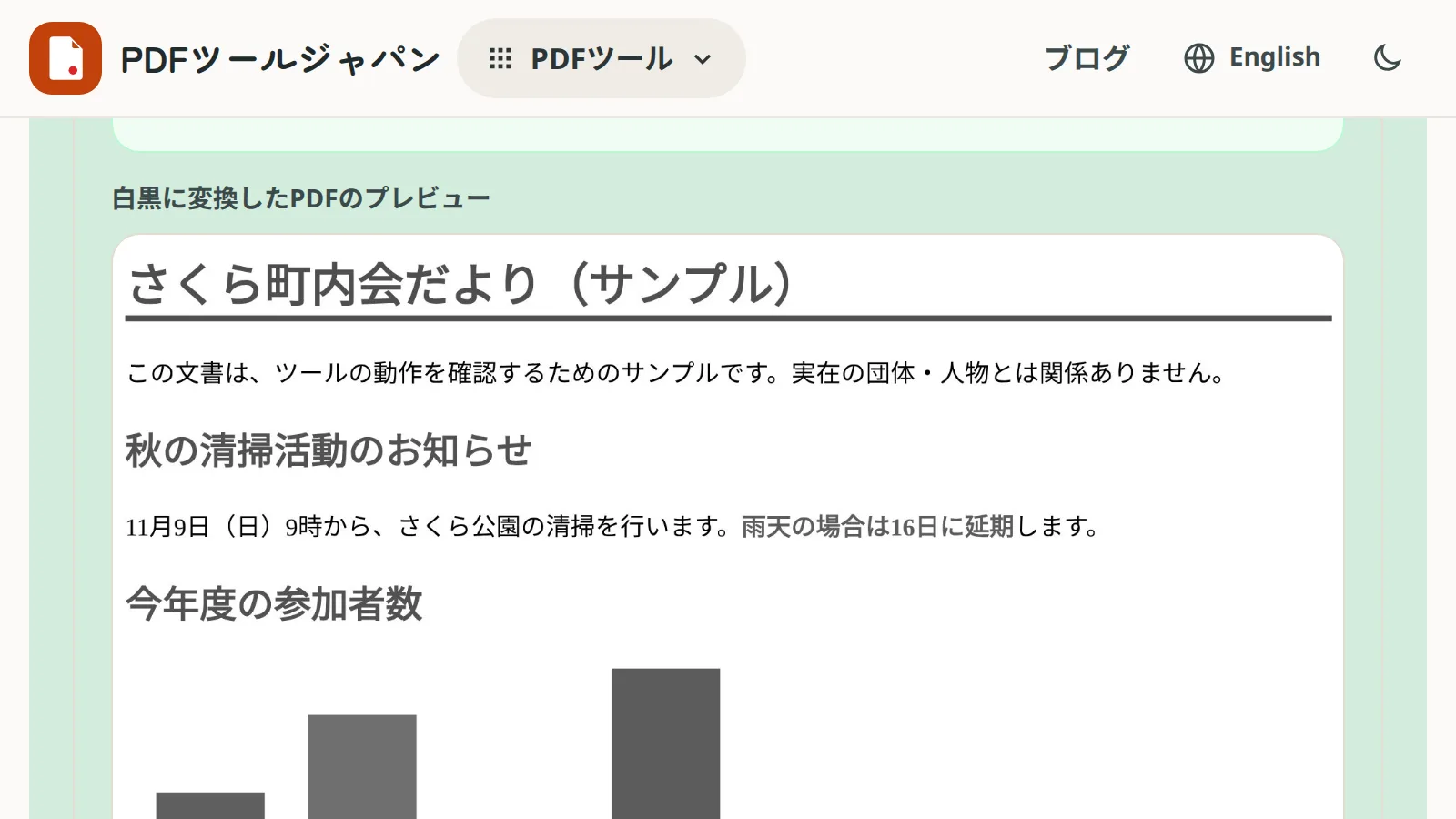
Use PDF to GrayscaleFree, no sign-up. Your files stay on your device.Screenshot: preview of a colour sample document after converting it with PDF to Grayscale

Why Word won’t make a black-and-white PDF

When you create a PDF with Save As or Export in Word, the document’s colours go straight into the PDF. There is no colour or grayscale option on that screen.

Printing to “Microsoft Print to PDF” on Windows has no colour setting either. The “Black and white” or “Grayscale” options in a printer’s settings only affect paper printouts, not PDFs.

So you need to remove the colour in Word first, or convert the PDF to black and white afterwards.

The three methods compared

Ways to make a black-and-white PDF from Word
MethodEffortText selectable / searchableBest for
1. Make text and pictures grayscale in Word, then saveCan be a lot, depending on the documentYesText-heavy documents, documents you will edit later
2. Convert the colour PDF with PDF to GrayscaleLittleNo (pages become images)Documents with many photos or charts, quick submissions
3. Gray Tone filter in Mac PreviewLittleYesMac users

Method 1: Remove the colour in Word, then save as PDF

To keep the text selectable and searchable, make the Word document itself black and white before creating the PDF. Save a copy first with Save As if you want to keep the original.

Make all text black

  1. Press Ctrl+A (Command+A on a Mac) to select everything
  2. On the Home tab, open the Font Color menu and choose “Automatic”

All coloured text, including headings and blue links, becomes black.

Switch theme colours to gray

If headings, tables or shapes use theme colours, go to the Design tab, open Colors and choose “Grayscale”. This doesn’t affect colours that were set directly, so change any that remain one by one.

Make pictures grayscale

  1. Click a picture
  2. On the Picture Format tab, open Color and choose “Grayscale” under Recolor

Save as PDF

Choose File > Save As and pick PDF as the file type. You can also convert the document with Word to PDF on this site.

Method 2: Convert the colour PDF afterwards

With lots of tables, shapes and photos, recolouring everything in Word takes time. It’s quicker to make a normal colour PDF and convert it.

PDF to Grayscale does this in your browser with no software to install. The PDF isn’t uploaded; it’s processed on your device.

  1. Save the document as a PDF from Word as usual (or use Word to PDF)
  2. Choose the PDF in PDF to Grayscale
  3. Pick a quality (High for small text)
  4. Click “Convert to grayscale”, check the preview and download

Each page becomes an image, so text can no longer be selected, copied or searched. That’s fine for documents you only submit; if the recipient needs to copy the text, use Method 1.

Method 3: Mac Preview

On a Mac, open the PDF from Word in Preview and choose File > Export. Under Quartz Filter, choose “Gray Tone” and save. Text usually stays selectable, but check the file size afterwards: with many pictures it can change.

What to check after converting

  • Faded text: light colours such as yellow or light blue turn pale gray and become hard to read. Setting text to Automatic (black) in Method 1 avoids this
  • Charts that rely on colour: bars or lines told apart only by colour look the same in gray. Add line styles, patterns or data labels
  • Red hanko stamps or red text: red becomes a mid gray. Make sure stamps are still clearly visible
  • File size: Method 2 can make even text-only documents bigger. If there’s an upload limit, shrink the result with Compress PDF

If you only need a black-and-white printout

To print on paper in black and white, you don’t need a black-and-white PDF. Choose “Black and white” or “Grayscale” in the printer’s properties and a colour PDF prints in black and white. Convenience-store copiers have the same option.

You only need a black-and-white file when the file itself must be black and white, for example for e-Tax or a company submission.

Frequently asked questions

Q. Can I choose black and white when saving a Word file as PDF?

A. No. Word’s save screen has no colour setting. Remove the colour in Word first, or convert the finished PDF with PDF to Grayscale.

Q. Can Microsoft Print to PDF make it black and white?

A. No. It has no colour setting and keeps the colours as they are.

Q. I want a black-and-white PDF where text is still selectable.

A. In Word, set the font colour to Automatic and recolour pictures to Grayscale, then save as PDF. On a Mac, Preview’s Gray Tone Quartz filter also works.

Q. Is monochrome the same as grayscale?

A. Strictly, monochrome (1-bit) has only black and white, while grayscale has shades in between. When a submission asks for “black and white”, grayscale is usually what they mean.

Q. Can I do this on a phone?

A. Yes. Save as PDF in the Word app, then open PDF to Grayscale in your browser and convert it.