Word can save a document as PDF, but not as JPG or PNG. (PowerPoint can save slides as images, which is why method 2 borrows it.) To turn a Word page into an image, use one of the methods below.
Ways to turn Word into an image
| Method | What you need | Image quality | Best for |
|---|---|---|---|
| Screenshot | Any device | Only as sharp as your screen | One page, quickly |
| Paste into PowerPoint as a picture | Word and PowerPoint | Good | Part of a page, such as a table or chart |
| Word to PDF, then PDF to JPG | Word or a PDF converter | Sharp (you choose the resolution) | When you need a PDF too |
| This site’s “Word to JPG” | A browser (any device) | Sharp (72–300 dpi) | All pages at once, phones, no Word installed |
Word can’t save as JPG
Method 1: Take a screenshot
Show the whole page in Word, then capture it.
- Windows: press Windows + Shift + S and drag over the page.
- Mac: press Shift + Command + 4 and drag over the page.
- iPhone / Android: take a normal screenshot, then crop it.
It’s quick for one page, but the image is only as sharp as your screen, so small text can be hard to read. It also takes time with many pages.
Method 2: Paste into PowerPoint as a picture
Useful for turning part of a page, such as a table or chart, into an image.
- In Word, select the part you want and copy it.
- In PowerPoint, choose Paste → Picture.
- Right-click the picture and choose “Save as Picture”, then pick JPEG or PNG.
You need both Word and PowerPoint, and it’s not practical for whole pages.
Method 3: Convert to PDF, then PDF to JPG
First save the document as a PDF (in Word: File → Export → Create PDF/XPS, or File → Save As with the type set to PDF). Then turn the PDF into images with “PDF to JPG”.
It takes two steps, but you get sharp images at the resolution you choose, and a PDF as well. Mac Preview can also export a PDF page as JPEG, but only one page at a time.
Method 4: Convert in your browser (no upload, works on phones)
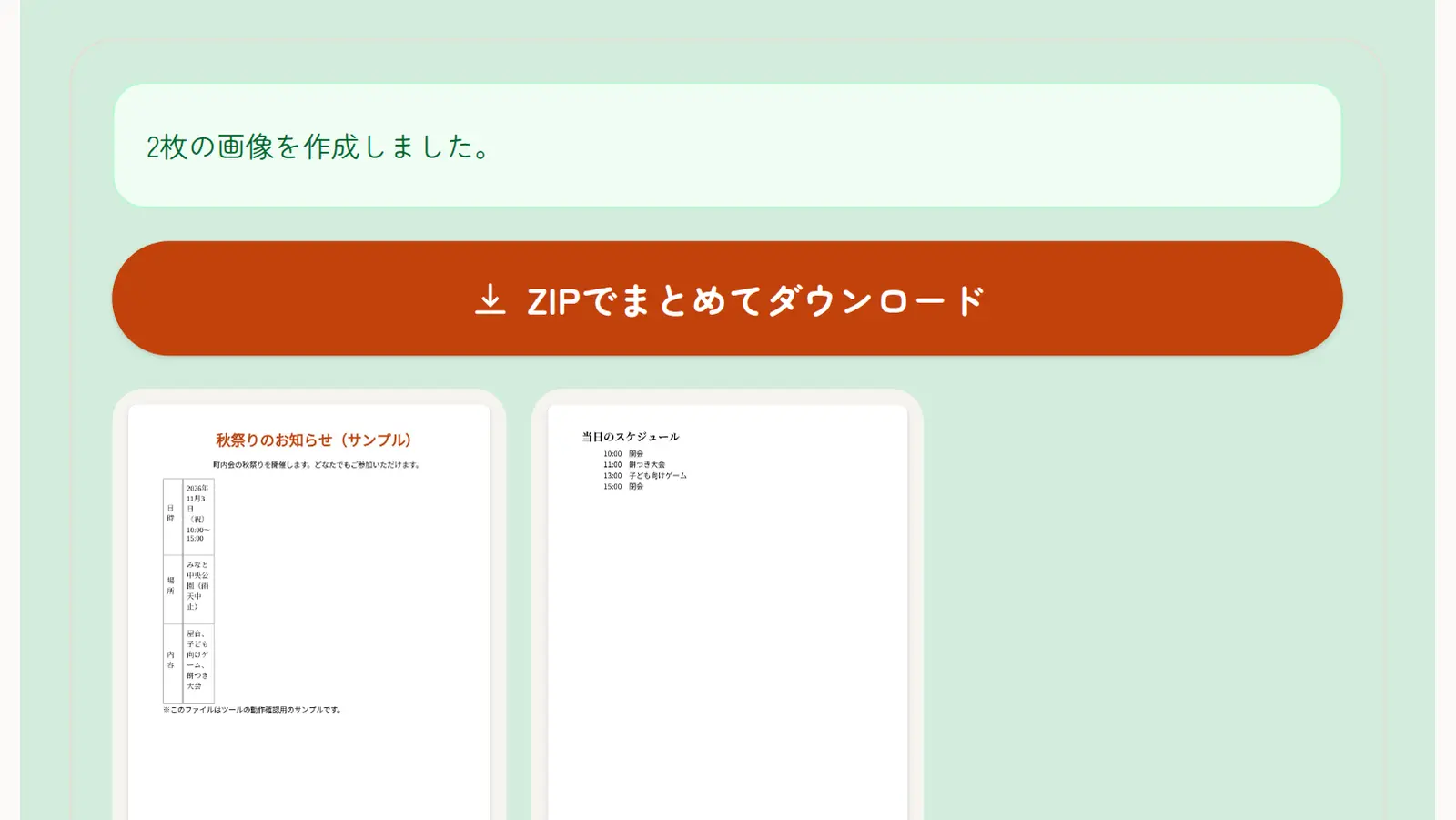
This site’s “Word to JPG” turns every page into an image in one go, in the browser on Windows, Mac, iPhone and Android, without Word. Your Word file isn’t uploaded to a server; it’s processed on your device.
- Open “Word to JPG” and select the Word file (.docx).
- Check the pages in the preview.
- Choose JPG or PNG and the resolution, then tap “Convert to images”.
- Download the images one by one, or all at once as a ZIP.
JPG or PNG, and which resolution?
For social media, LINE and email, JPG is fine: the files are small. Choose PNG when small text or thin lines must be as sharp as possible.
For resolution, Standard (150 dpi) suits most uses: an A4 page becomes about 1240 × 1754 pixels. Choose High (300 dpi) for printing.
Tips for posting on social media and LINE
Instagram crops tall pages
In the Instagram feed, portrait images can be at most 4:5. An A4 page is taller than that, so the top and bottom get cut off. Either add white space on the left and right, or post it as a Story.
Small text can blur on LINE
LINE and social media apps compress images when you send them, so small text can become hard to read. For text-heavy documents, use Standard or High resolution, or send a PDF instead.
Make big images smaller
If a site limits the file size, make the image smaller with “Compress Images” or change its size with “Resize Images”.
Text in the image can’t be edited
A JPG is a picture of the page, so the text in it can’t be selected, searched or edited. Keep the original Word file. If you need selectable text, send a PDF made with “Word to PDF”.