PDF apps have two rotate features that look the same but work differently.
To fix a document you’ll submit or send to someone, you need page rotation, saved into the file.
You rotate a sideways PDF, close it, and the next time it opens it’s sideways again. That happens because the rotate feature you used only turned the page on your screen, not the file itself. This guide explains the difference and shows how to save the rotation into the PDF so it stays fixed.
Use Rotate PDFFree, no sign-up. Your files stay on your device.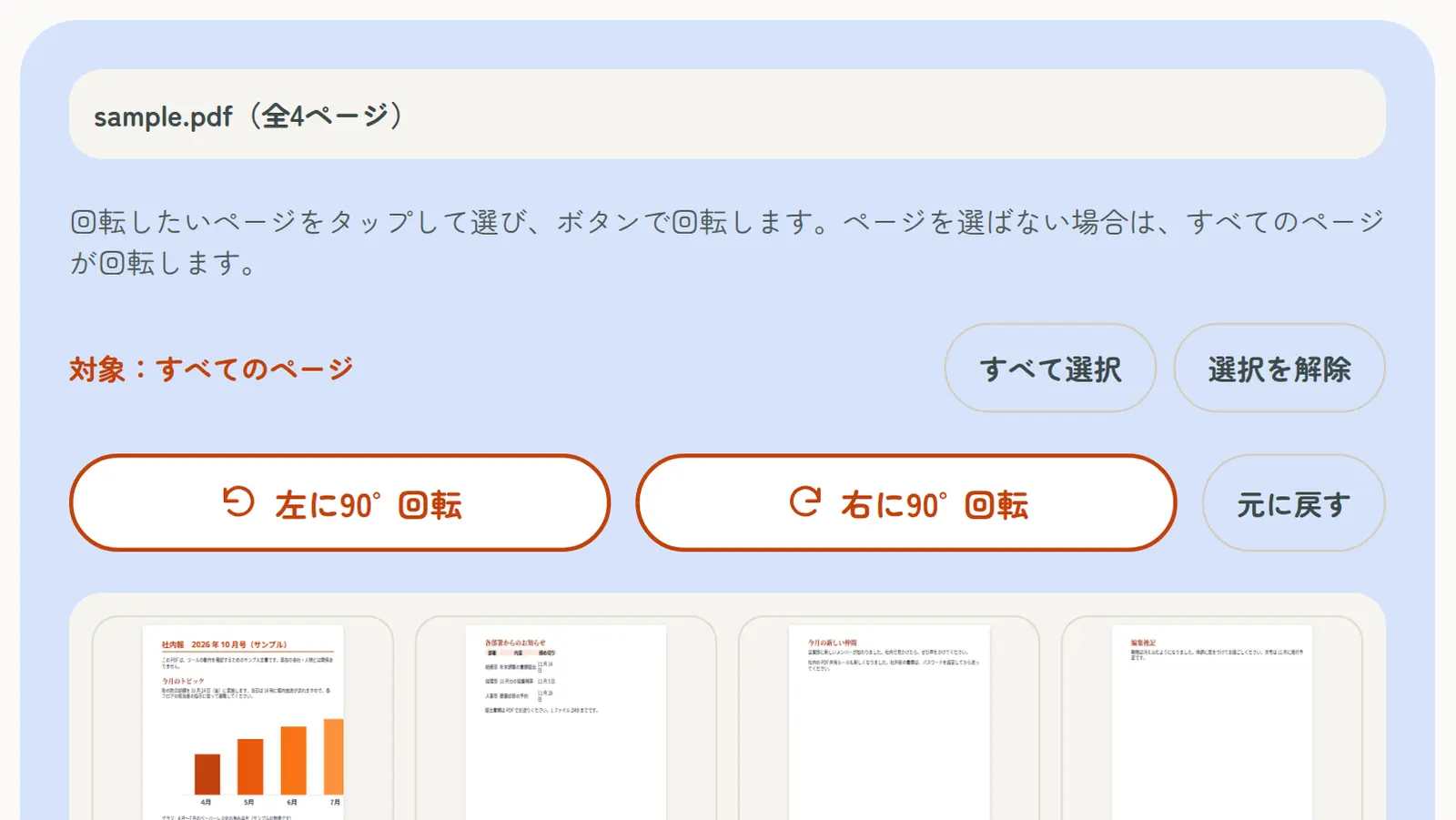
PDF apps have two rotate features that look the same but work differently.
To fix a document you’ll submit or send to someone, you need page rotation, saved into the file.
| Type | What changes | After reopening |
|---|---|---|
| View rotation | Only how the page looks on your screen | Back to the old orientation |
| Page rotation | The orientation setting of each page inside the PDF | Stays rotated |
View > Rotate View turns the page on your screen only. It isn’t saved in the file, so the PDF opens in the old orientation when you close it or send it. Organize Pages, which rotates and saves the pages themselves, is generally a feature of paid Acrobat.
The rotate button you see when opening a PDF in Chrome or Edge also generally rotates only the view. Closing the tab brings back the old orientation.
Rotate PDF on this site rewrites each page’s orientation and saves a new PDF. It works in your browser with no app to install and no sign-up.
The downloaded PDF opens the right way up in any app and for anyone you email it to. Only the orientation setting changes, so quality stays the same and text can still be selected and searched.
On a Mac, the built-in Preview app can rotate pages and save them. Fix the orientation with the rotate tool, then choose File > Save. To rotate several pages at once, choose View > Thumbnails, select the pages, then rotate.
Another way is to rotate the view and print to a new PDF with “Microsoft Print to PDF” or similar. But a reprinted PDF can lose bookmarks, links and form fields, and its file size may change. To keep the original PDF as it is, change only the page orientation instead.
When you scan a stack of pages on a copier or phone, a few pages often come out sideways. Along with rotating, these tools help you tidy the PDF before submitting it:
The tools on this site process PDF files only on your device. Nothing is uploaded to a server, so contracts and documents with personal information are safe to rotate.
A. The rotate feature you used only turned the view on your screen. The page orientation inside the file didn’t change, so it opens the old way.
A. Rotate View isn’t saved in the file. Rotating and saving the pages themselves is generally a paid Acrobat feature. To do it for free, use Rotate PDF on this site.
A. Yes. In Rotate PDF, select only the pages you want to rotate, then press a rotate button.
A. No. Only the orientation setting changes, so quality stays the same.
A. Yes. Open Rotate PDF in your iPhone or Android browser and download the rotated PDF.
A. PDFs with a password or editing restrictions can’t be rotated. Remove the password first with Unlock PDF.