Adobe Acrobat Reader is for viewing and printing PDFs. Editing pages, such as reordering or deleting them, is only in “Organize Pages” in the paid Acrobat Pro, so for free you need another app or tool.
Why the free Acrobat Reader can’t reorder pages
Ways to reorder PDF pages
| Method | Devices | Cost | Best for |
|---|---|---|---|
| Adobe Acrobat Pro “Organize Pages” | Computer | Paid | You already have Acrobat Pro |
| Mac Preview | Mac | Free | Moving pages on a Mac |
| This site’s Reorder PDF Pages | Any device (browser) | Free | Reordering on Windows or a phone, or reversing the order |
Reordering in Mac Preview
Open the PDF in Preview and choose View → Thumbnails. Drag thumbnails to where you want them, then save.
Dragging pages into order in your browser (no upload)
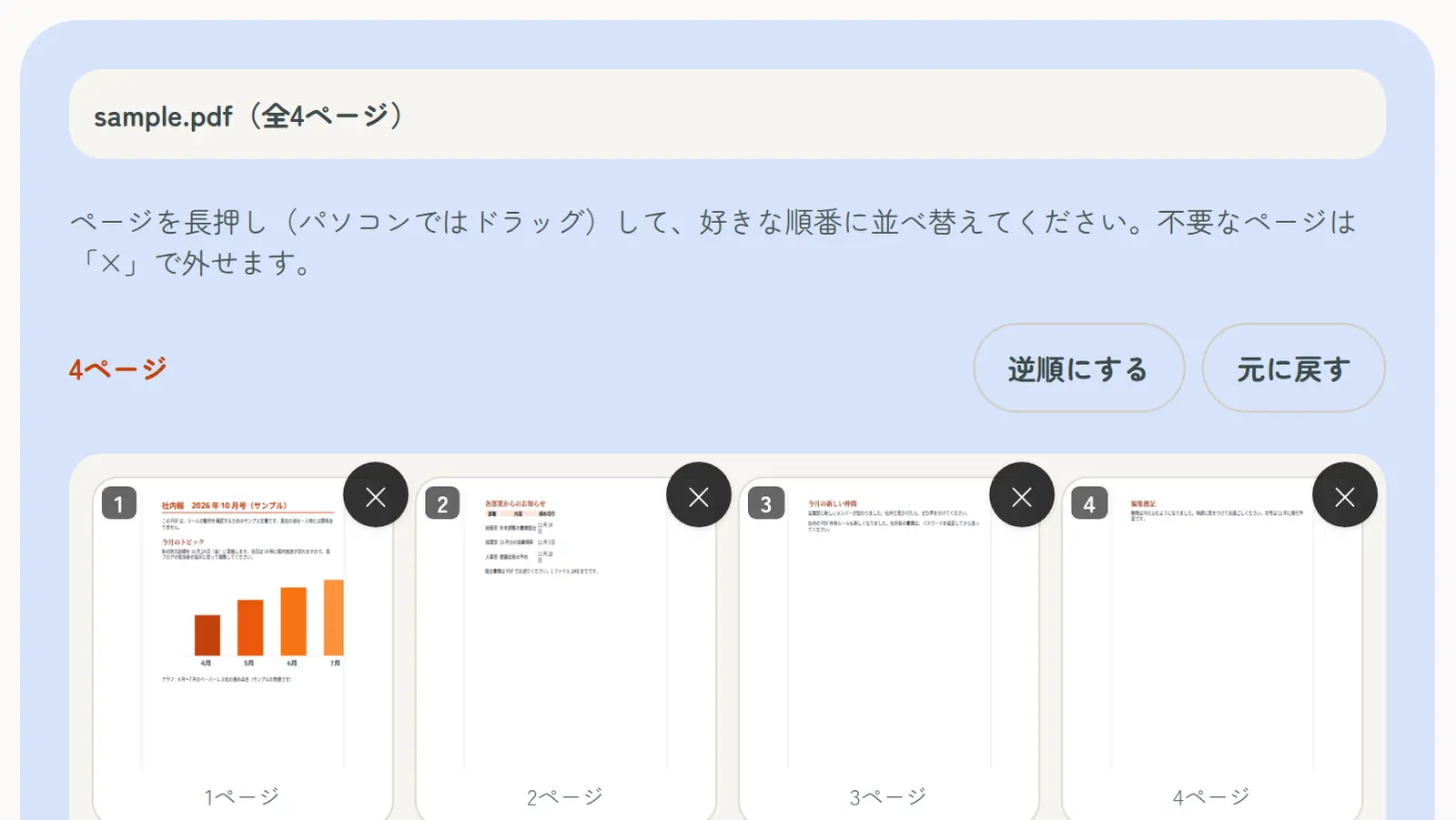
This site’s Reorder PDF Pages lets you drag page thumbnails into a new order on Windows, Mac, iPhone or Android. Your PDF is never uploaded.
- Open Reorder PDF Pages and choose your PDF
- Press and hold a page (drag on a computer) and move it where you want
- Tap “Reverse order” or remove pages with “×” if needed
- Tap “Create PDF in this order”, check the preview and download
Fixing common scan order problems
Scanned back to front
If the stack went in upside down, the last page comes first. “Reverse order” flips every page back in one tap.
Fronts first, then backs in reverse
With a one-sided scanner, scanning all the fronts and then flipping the stack for the backs gives “1, 3, 5, …” followed by “…, 6, 4, 2”. Drag each back page right after its front so fronts and backs alternate.
Some pages are sideways
Fix just those pages with Rotate PDF before or after reordering.
Combining PDFs in a required order
Japanese visa, school and job applications often list documents in a set order. Combine the files in that order with Merge PDF, adjust individual pages here if needed, then add page numbers with Add Page Numbers so the recipient can check everything.