Skip to content
PDF Tools Japan

How to Reduce Photo File Size – Shrink Photos to a Target KB on Your Phone or Computer

An application form says “under 200KB”, or an email bounces because the photo is too big. Phone photos are often several MB each. This guide explains what decides a photo’s file size, how to make it smaller on a phone or computer, and how to hit an exact KB limit.

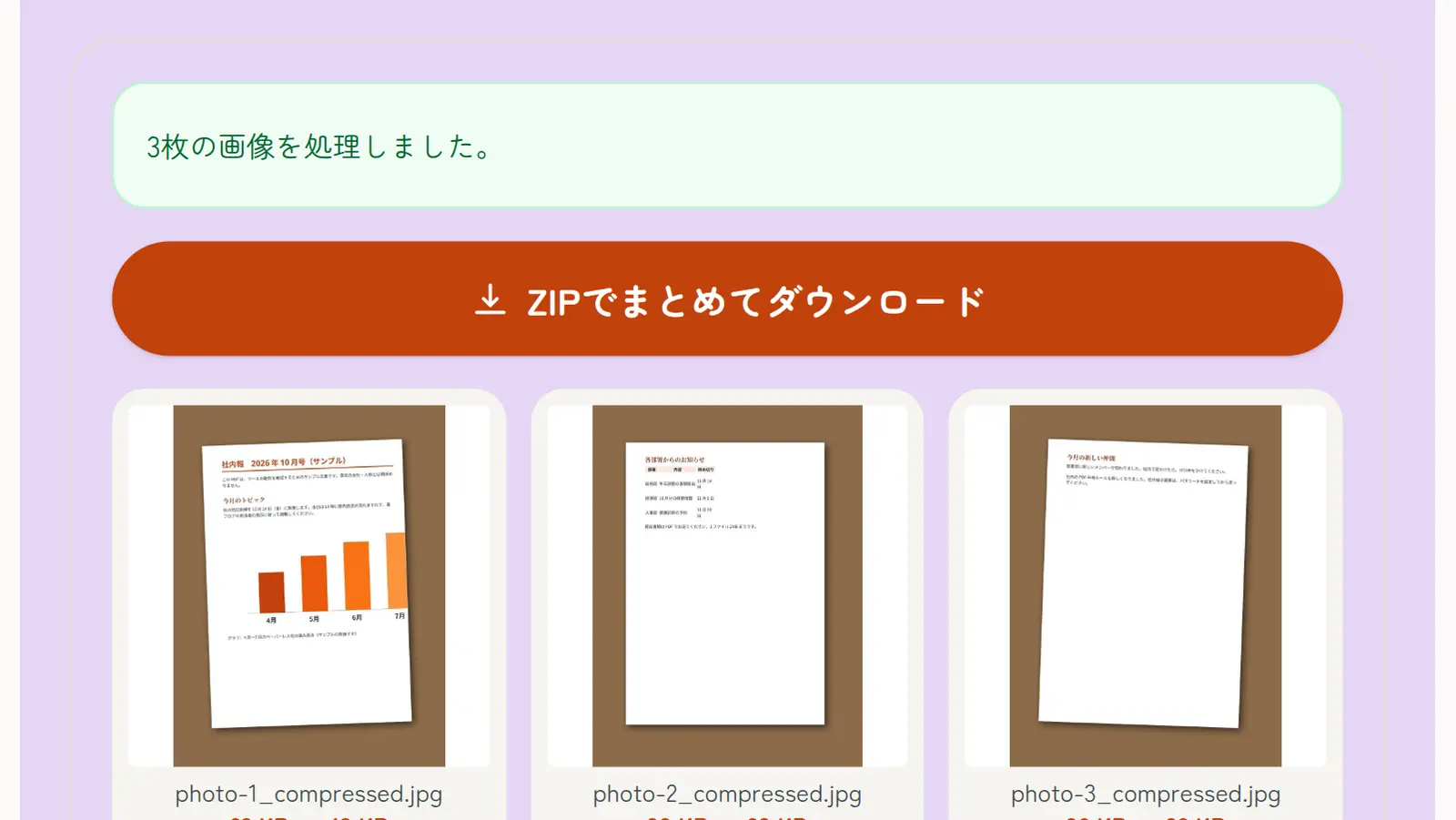
Use Compress ImagesFree, no sign-up. Your files stay on your device.Screenshot: the result of Compress Images on sample images

File size depends on dimensions and quality

A photo’s file size mostly depends on two things. To make it smaller, lower one or both.

  • Dimensions (pixels): halving the width and height makes the file roughly a quarter of the size
  • Quality (compression): lower JPG quality makes smaller files, but fine detail blurs and noise appears

Phone photos are often around 4,000 pixels on the long side, far bigger than forms or email need. Shrink them to about 1,000–2,000 pixels first, then lower the quality only if needed; that keeps them looking good.

Typical file sizes

Size varies a lot with the content: busy detail makes bigger files than sky or plain walls. Treat these as rough guides.

Typical JPG photo sizes by dimensions
Long sideTypical sizeGood for
About 4,000 px (original phone photo)About 2–5MBPrinting, keeping originals
About 2,000 pxAbout 500KB–1MBEmail, documents
About 1,200 pxAbout 200–400KBOnline forms, social media
About 800 pxAround 100KBForms with strict limits

On an iPhone

When you attach photos in the Mail app, you may be offered Small, Medium, Large or Actual Size. Small or Medium sends a reduced copy.

To shrink the photo itself, you can make a Shortcut with the “Resize Image” action, but it can’t target a size in KB.

On Android

On some phones the gallery app’s editor has a resize option for saving a smaller copy. Whether it exists, and what it’s called, depends on the phone.

On Windows and Mac

In the Windows 11 Photos app, open the photo and choose “Resize image” from the “…” menu to set dimensions and quality. Paint’s Resize also works.

In Mac Preview, use Tools → Adjust Size. File → Export as JPEG shows a quality slider with the resulting file size.

Compressing many photos to a target KB (no upload)

With the methods above you have to save, check the size and try again. This site’s Compress Images lets you type a target such as 200KB and compresses each photo to fit. iPhone HEIC photos work too, and you can do many at once. Your photos are never uploaded.

  1. Open Compress Images and choose your photos (several at once is fine)
  2. Choose “Set a file size (KB)” and enter the target (e.g. 200KB)
  3. Choose the format (JPG if unsure)
  4. Tap “Compress images” and download them one by one or as a ZIP

Compressed images don’t keep Exif data such as GPS location, so this is also a way to remove location before posting photos online.

Japanese forms with pixel and KB limits

Japanese job sites, school portals and government services often set both a pixel size (such as “at least 600 px wide” or a 3:4 ratio) and a KB limit. Match the dimensions with Resize Images first, then shrink the file with Compress Images. For résumé or My Number card photos, ID Photo Maker crops to the official Japanese sizes.

Frequently asked questions

Q. Can I reduce a photo’s size for free?

A. Yes. iPhone Mail’s size options, the Windows Photos app, Mac Preview and this site’s Compress Images are all free.

Q. How do I get a photo under 200KB?

A. In Compress Images, choose “Set a file size (KB)” and enter 200KB; it compresses the photo to fit.

Q. Can I make it smaller without losing quality?

A. Not entirely, but shrinking the dimensions to what you need and not lowering the quality too far keeps the change hard to see.

Q. Does it work with iPhone HEIC photos?

A. Yes. Compress Images accepts HEIC; save as JPG so almost any form accepts it.

Q. Can I shrink many photos at once?

A. Yes. Compress Images processes several photos with the same settings and downloads them as a ZIP.

Q. Does compressing remove location data?

A. Images compressed with this site’s Compress Images don’t keep Exif data such as location.