Skip to content
PDF Tools Japan

How to Reduce PDF File Size – 5 Tips to Keep It Readable

A PDF that’s too large won’t attach to an email or upload to an application form. Japanese online services, from residence (visa) applications to city office e-applications and job forms, often have strict file size limits. Compressing too hard, though, can make text unreadable. This guide explains why PDFs get large and how to shrink them while keeping them legible.

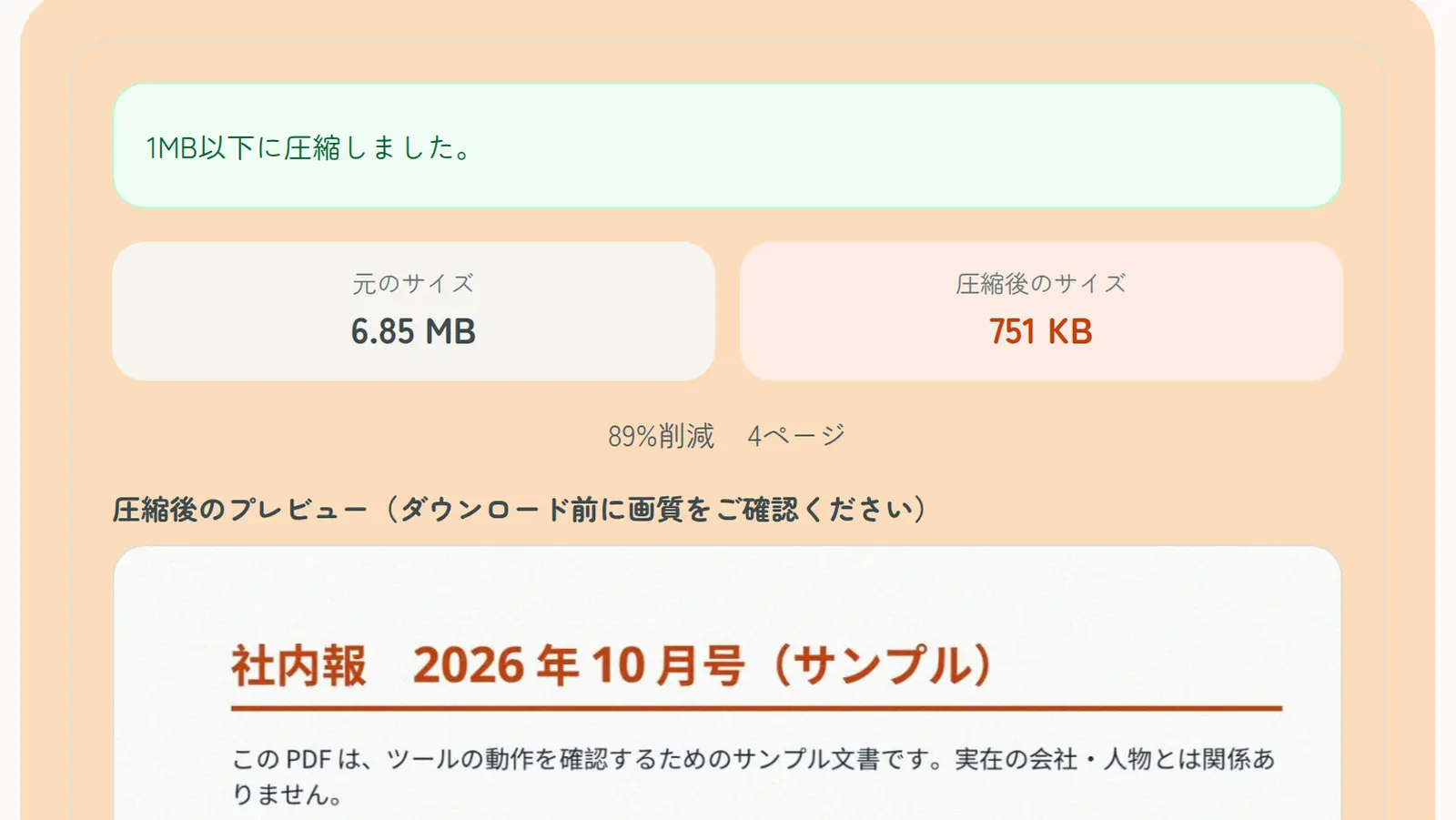
Use Compress PDFFree, no sign-up. Your files stay on your device.Screenshot: the result of Compress PDF to 1MB on a sample PDF

Why PDFs get large

A PDF’s size is mostly determined by the images inside it. A text-only PDF is often a few hundred KB even with dozens of pages, while these tend to be large:

  • PDFs with photos taken on a smartphone (one photo can be several MB)
  • Documents scanned in color or at a high resolution
  • Documents with many pages
  • PDFs with embedded font data

So the most effective way to reduce size is to make the images smaller.

Tip 1: Compress to a target size

If there’s a limit such as “2MB per file”, use that number as your target. Going much smaller than needed only lowers quality.

Our Compress PDF tool lets you enter a target such as 500KB, 1MB or 2MB and compresses the photos and scans inside to fit. Your file is never uploaded; it’s processed on your device.

Tip 2: Delete pages you don’t need

Removing blank or unneeded pages reduces the size, and with fewer pages, each one gets more of the size budget, so quality holds up better.

Tip 3: Use grayscale when color isn’t needed

Text documents and materials where color doesn’t matter can get smaller in grayscale. It’s also useful when an office asks for black-and-white documents.

Tip 4: Split it if one file won’t fit

Long documents sometimes can’t fit the limit. Check whether you can submit several files, and if so, split the PDF by document.

Tip 5: Create it small in the first place

If you haven’t made the PDF yet, start small:

  • When scanning, choose grayscale or black and white instead of color, at about 200–300 dpi
  • When saving a PDF from Word or Excel, choose “Minimum size (publishing online)”
  • Shrink photos with Compress Images before turning them into a PDF

Can built-in Windows or Mac tools do it?

Windows has no built-in PDF compression. On a Mac, Preview’s File → Export with the “Reduce File Size” Quartz filter makes a PDF smaller, but you can’t choose a target size and quality often drops a lot. The free Adobe Acrobat Reader can’t compress either; you need paid Acrobat Pro.

Always check before you submit

Before submitting, check that small text, numbers and photos are still readable. Lost quality can’t be restored, so keep the original file too.

Frequently asked questions

Q. How can I reduce a PDF’s size for free?

A. Enter a target size in our Compress PDF tool and select your PDF. It’s free, needs no sign-up and never uploads your file.

Q. Can I make a PDF smaller without losing quality?

A. Compressing images always lowers quality somewhat. Deleting unneeded pages and setting the target right at the limit keeps the loss small.

Q. Why won’t my text-only PDF get smaller?

A. Text-only PDFs are already small, so there’s little data to remove.

Q. Can I compress a PDF on my phone?

A. Yes. Open Compress PDF in your iPhone or Android browser; no app is needed.

Q. How large can an email attachment be?

A. It depends on the service; Gmail allows up to 25MB. The recipient’s limit matters too; see Compress PDF for Email for details.