The free Adobe Acrobat Reader can’t export to Word. Converting in Acrobat needs paid Acrobat Pro, and Adobe’s online tool uploads your file to its servers.
Three ways compared
| Method | What you need | Is the file uploaded? | Best for |
|---|---|---|---|
| Open it in Word | Word 2013 or later for Windows | No | You have Word and the PDF is mostly text |
| Google Docs | A Google account | Yes, to Google Drive | You don’t have Word |
| Our PDF to Word tool | Just a browser (any device) | No (processed on your device) | No Word, on a phone, or confidential documents |
Method 1: Open the PDF in Word
Word 2013 and later for Windows can open a PDF directly. Choose File → Open and select the PDF; Word says it will convert the PDF to an editable document. Click OK.
It’s quick, but PDFs with tables, columns or many images often come out badly broken.
Method 2: Open it with Google Docs
Without Word, you can use Google Docs. Upload the PDF to Google Drive, right-click it and choose Open with → Google Docs. Then save it with File → Download → Microsoft Word (.docx).
Images and layout are often lost, and the file has to be uploaded to Google Drive.
Method 3: Convert in your browser, with no upload
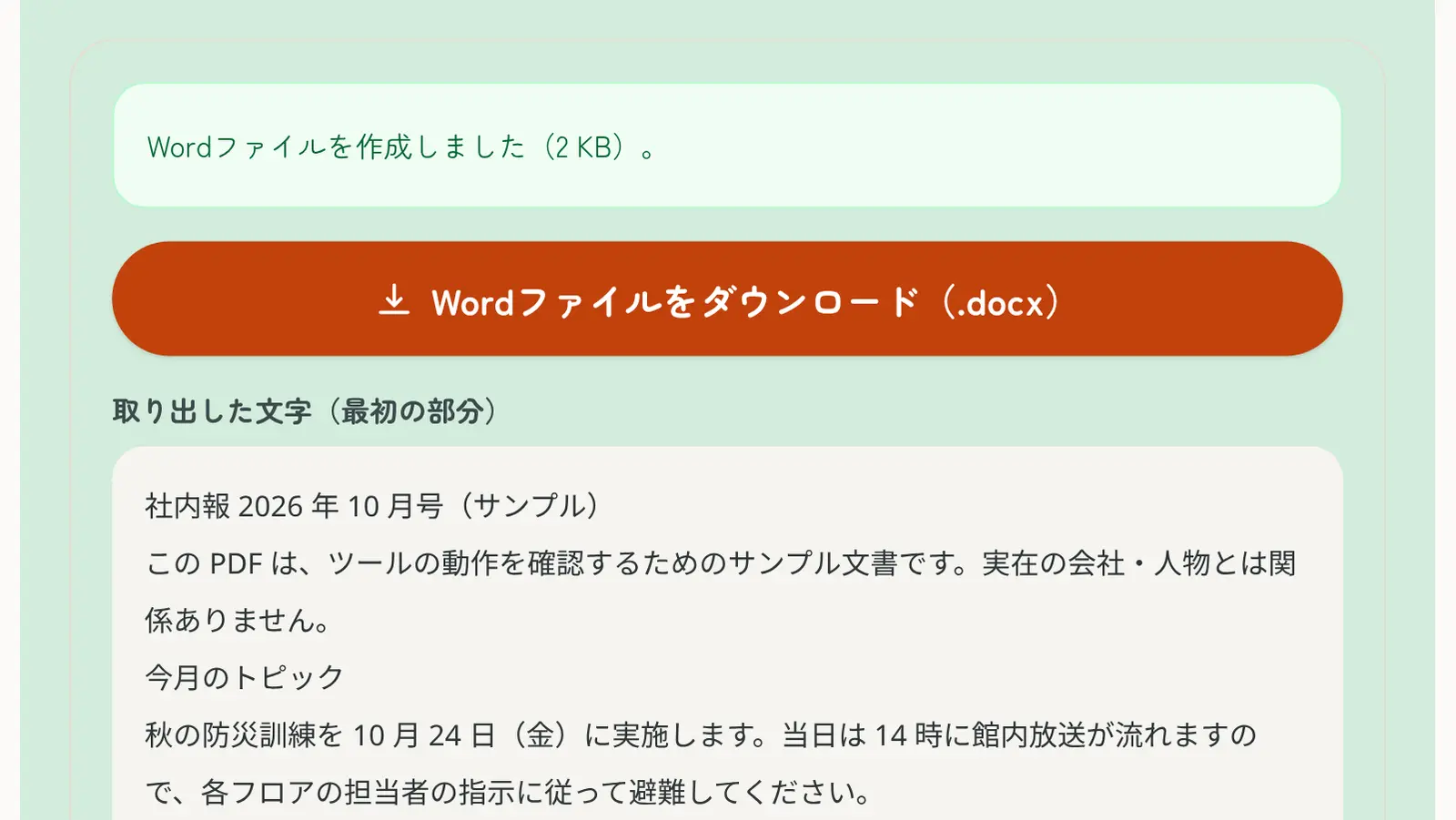
Our PDF to Word tool works in the browser on Windows, Mac, iPhone and Android, with no Word needed. Your PDF is never uploaded; it’s converted on your device, so contracts and confidential documents stay private.
- Open PDF to Word and select your PDF
- Choose “Editable text” to edit the wording, or “Keep the layout” to keep the exact look
- Tap “Convert to Word”
- Download the Word file and open it in Word or Google Docs
Tables with ruled lines become Word tables, and Japanese PDFs work too: vertical text (tategaki) is read column by column, right to left, and turned into normal lines you can edit, copy or translate.
Why the layout breaks
A PDF records where each piece of text and graphics sits on the page; it has almost no idea of paragraphs or tables. Converting to Word means guessing that structure from positions, so complex layouts rarely come out exactly the same.
If you want to edit the text
Don’t fight the layout: convert with “Editable text” and tidy up the formatting in Word.
If you want to keep the look
Choose “Keep the layout”, which places each page as an image in Word. The text isn’t editable, but the Word file looks exactly like the PDF.
If you only need to fill in a few words
To add a date or name, skip Word and type straight onto the PDF with Add Text to PDF. The layout stays intact, which helps with Japanese forms.
Scanned PDFs need OCR first
PDFs made from scans or photos store text as an image, so converting them to Word doesn’t make the text editable. Read the text with OCR (Text Recognition) first, then paste it into Word.
Turning your edited Word file back into a PDF
When you submit or send the edited document, save it as a PDF again so the layout doesn’t change on the recipient’s side. Use Save As → PDF in Word, or Word to PDF if you don’t have Word.