Skip to content
PDF Tools Japan

PDF to JPG Looks Blurry? – Choosing a Resolution That Keeps Text Sharp

You converted a PDF to JPEG and the text is fuzzy, or turns jagged when you zoom in. The cause is almost always the resolution (DPI) and how the image was compressed. This guide explains why quality drops, how to choose a resolution for your purpose, and what to do when images get worse after you send them.

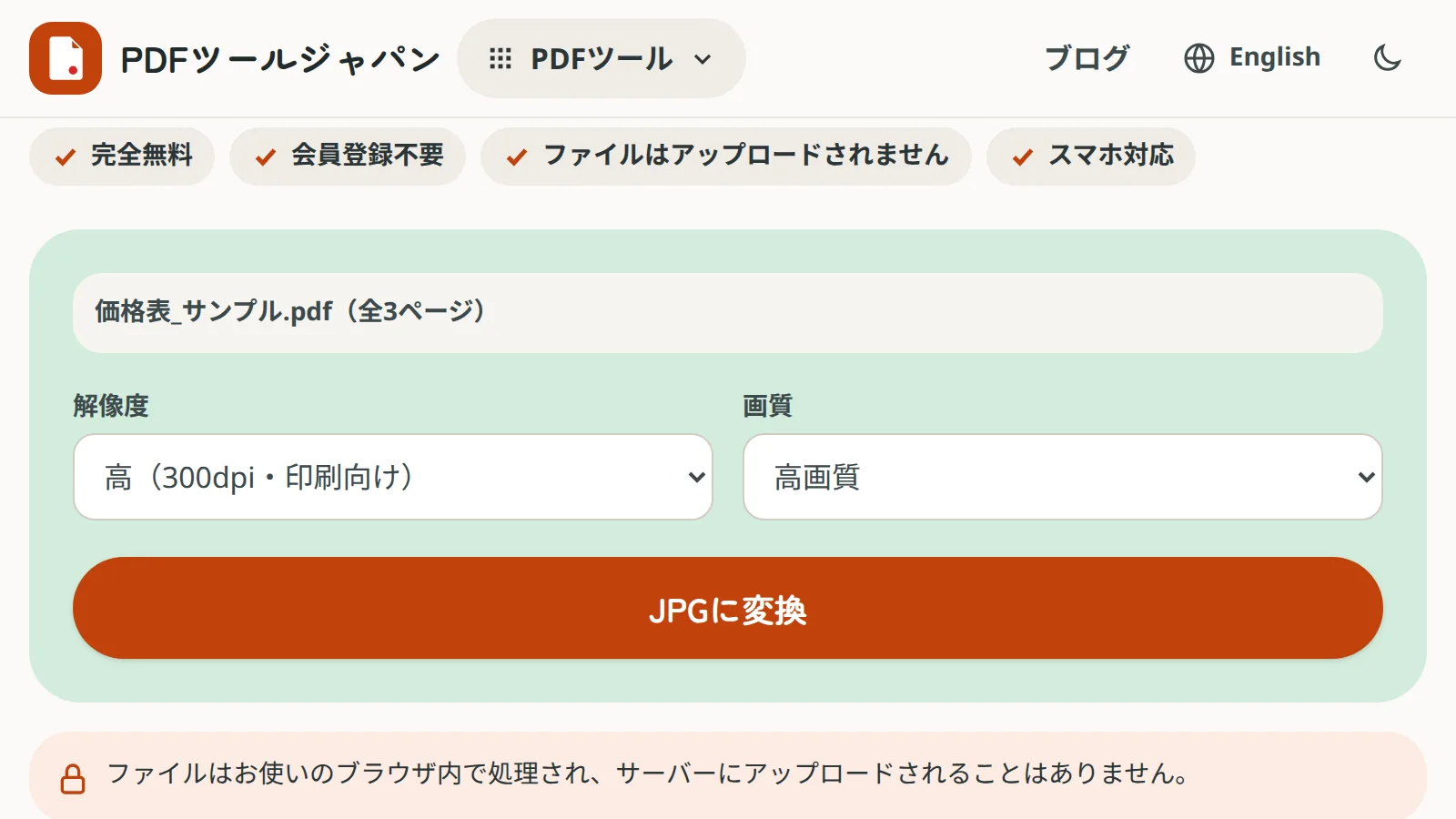
Use PDF to JPGFree, no sign-up. Your files stay on your device.Screenshot: a sample price-list PDF in PDF to JPG with resolution High (300 dpi) and quality High selected

Why the quality drops

Text in a PDF is smooth at any zoom level. In an image, it becomes a fixed number of dots (pixels). Too few dots and text blurs or turns jagged.

The usual causes:

  • Low resolution (DPI): not enough pixels, so small text gets crushed
  • Using a screenshot: you only get as many pixels as the screen showed
  • Strong JPEG compression: fuzzy noise appears around letters
  • Shrunk after sending: LINE or mail apps make images smaller when you send them

How DPI relates to pixels

DPI (dots per inch) is how many dots fit in one inch (about 2.54 cm). The same A4 page becomes very different image sizes depending on the DPI.

Pixel size of one A4 page (210 × 297 mm)
ResolutionImage sizeGood for
72 dpiAbout 595 × 842 pxThumbnails, very small files (small text is hard to read)
150 dpiAbout 1240 × 1754 pxViewing on phones and computers, upload forms, slides
300 dpiAbout 2480 × 3508 pxPrinting, zooming into fine text or drawings

Fix 1: Convert again at a higher resolution

The most effective fix is to convert again with a higher resolution. PDF to JPG offers three settings.

  1. Choose the PDF in PDF to JPG
  2. Set the resolution to Standard (150 dpi) or High (300 dpi, for printing)
  3. Set quality to High
  4. Click “Convert to JPG” and save

Text at 9 pt or smaller, and tables with thin lines, can still be hard to read at 150 dpi; choose 300 dpi for those. The PDF isn’t uploaded; it’s processed on your device.

Fix 2: Use PNG for text-heavy pages

JPEG is designed for photos and adds noise where black meets white, such as around letters. If text still looks smudged at High quality, save as PNG, which is lossless.

For documents, tables, drawings and charts, PDF to PNG is the better choice. If the destination requires JPEG, stay with JPG and raise the resolution and quality.

Fix 3: Don’t use screenshots

A screenshot only has as many pixels as the screen displayed. A whole A4 page on a phone screen comes out roughly 1,000 pixels wide, and small text is lost.

If you must use a screenshot, zoom in on the part you need first. For whole pages, a converter where you choose the resolution is far more reliable.

Fix 4: Crop the margins first

Images viewed on a phone are scaled to the screen width, so wide margins make the text look smaller. Crop the margins with Crop PDF Margins before converting, and the text appears larger at the same resolution.

When images look worse after sending

If the images look fine on your device but blurry for the recipient, the app shrank them.

  • LINE: choose “Original quality” when sending, or send the image as a file
  • iPhone Mail: pick “Actual Size” when asked about image size
  • Many images: send the ZIP from “Download all as ZIP”; files inside a ZIP aren’t resized

If the recipient will print it, sending the original PDF gives the best result.

When better quality makes the file too big

A 300 dpi JPEG can be 1–3 MB per page. If an upload form has a size limit, try this order to keep text readable:

  1. Convert at 150 dpi and check that the text is readable
  2. If not, convert at 300 dpi and shrink to a target size (KB) with Compress Images
  3. Still too big? Crop unneeded margins with Crop PDF Margins before converting

Cropping margins or converting only the pages you need keeps text more readable than lowering the resolution.

Frequently asked questions

Q. Why is the text blurry after converting a PDF to JPEG?

A. The resolution was too low, or JPEG compression added noise around the letters. Convert again at 150 dpi or more with High quality, or use PNG for text-heavy pages.

Q. What DPI should I use?

A. 150 dpi for screens and upload forms; 300 dpi for printing or very small text.

Q. What happens if the DPI is too high?

A. Files get bigger. Above 300 dpi you will hardly see a difference on screen.

Q. Can I fix a JPEG that is already blurry?

A. No; enlarging an image can’t restore lost detail. Convert again from the original PDF at a higher resolution.

Q. Images look rough after sending on LINE.

A. LINE shrinks images by default. Choose “Original quality” when sending, or send them as files.