The free Adobe Acrobat Reader can’t export images; that’s a feature of paid Acrobat Pro.
Options by device
| Device | Built-in option | All pages at once | Choose resolution |
|---|---|---|---|
| Windows | Screenshot (Snipping Tool) | No | Limited by screen size |
| Mac | Preview: Export as JPEG | One page at a time | Yes |
| iPhone / Android | Screenshot | No | Limited by screen size |
| Our PDF to JPG tool | Works in any browser | Yes (ZIP download) | Yes (72, 150, 300 dpi) |
The problem with screenshots
Taking a screenshot is the quickest option, but the resolution depends on your screen. Fit a whole A4 page on screen and small text, especially dense Japanese characters, gets blurry. With many pages, you also have to capture each one.
Using Preview on a Mac
On a Mac, open the PDF in Preview, choose File → Export and select JPEG as the format. You can set the resolution, but only the current page is exported, so you need to repeat it for each page.
Convert every page at once
Our PDF to JPG tool converts every page at once in the browser on Windows, Mac, iPhone and Android. No app is needed, and your PDF is never uploaded; it’s processed on your device.
- Open PDF to JPG and select your PDF
- Choose the resolution (72, 150 or 300 dpi) and quality
- Tap “Convert to JPG”
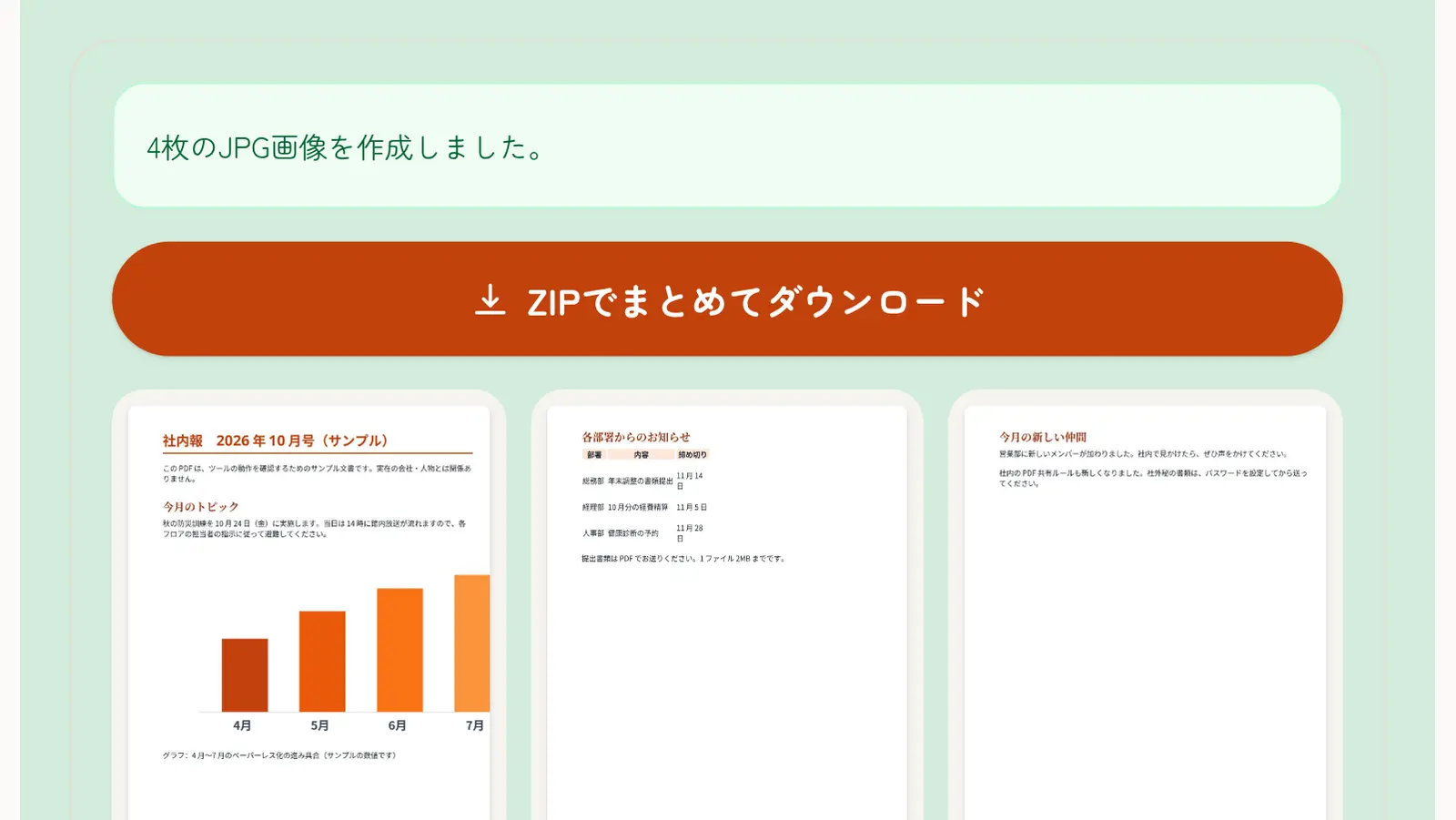
- Download the images one by one, or tap “Download all as ZIP”
Each image’s file name includes the page number, like “_01” and “_02”, so you can tell which page is which.
Choosing a resolution
Viewing on a phone or sending on LINE: 72–150 dpi
150 dpi looks sharp on screen. Choose 72 dpi for the smallest files.
Forms, slides and translation apps: 150 dpi
Text stays readable without large files. If you’re unsure, choose this. For very small Japanese text, try 300 dpi.
Printing: 300 dpi
Text and diagrams stay crisp in print. Files are larger.
JPG or PNG?
JPG suits photo-heavy flyers and documents. For crisp text and lines, or diagrams and charts for slides, use lossless PNG with PDF to PNG.
Converting only some pages
If you only need a few pages, take them out first with Split PDF, then convert, so no extra images are created.