Skip to content
PDF Tools Japan

How to Convert a PDF to Black and White – Making a Grayscale PDF File, and What to Check First

A form says to submit documents in black and white, or you want to see how a color PDF will look printed in black and white at a convenience store. Choosing “black and white” in a print dialog often doesn’t give you a black-and-white PDF file. This guide compares ways to make one and what to check before converting.

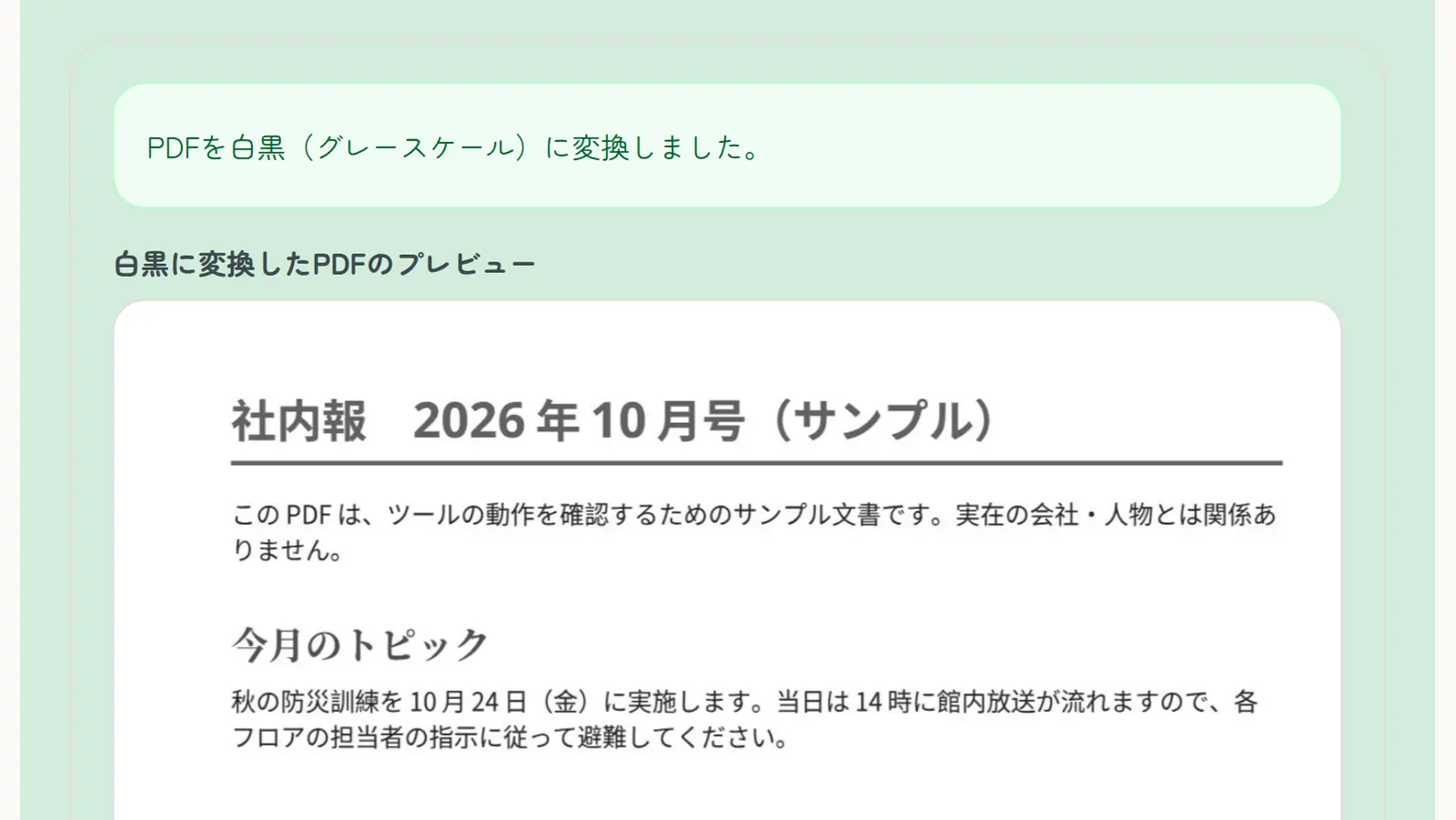
Use PDF to GrayscaleFree, no sign-up. Your files stay on your device.Screenshot: the result of PDF to Grayscale on a sample PDF

Printing in black and white vs. a black-and-white PDF

To print on paper in black and white, just set color to black and white in the print dialog. Almost every printer and convenience-store multifunction printer in Japan offers it.

To submit a black-and-white PDF file by email or on an application site, the PDF itself has to be converted. When the print destination is “Save as PDF” in Chrome or Edge, the color option often isn’t available, so you don’t get a black-and-white PDF.

Ways to make a black-and-white PDF

Ways to convert a color PDF to a black-and-white PDF
MethodDevicesCostBest for
Mac Preview (Quartz Filter)MacFreeMaking a grayscale PDF on a Mac
Adobe Acrobat ProComputerPaidYou already have Acrobat Pro
Adobe Acrobat Reader (free)Computer and phoneFreeCan’t convert to grayscale
This site’s Grayscale PDFAny device (browser)FreeA quick grayscale PDF on Windows or a phone

Converting in Mac Preview

Open the PDF in Preview and choose File → Export. Set the Quartz Filter to “Gray Tone” and save to get a black-and-white PDF.

Making a black-and-white PDF in your browser (no upload)

This site’s Grayscale PDF converts a color PDF to grayscale on Windows, Mac, iPhone or Android with nothing to install. Your PDF is never uploaded.

  1. Open Grayscale PDF and choose your PDF
  2. Choose the quality: “Standard” for viewing and sending, “High” for printing or small text
  3. Tap “Convert to grayscale”
  4. Check the preview and download the PDF

Check these before converting

  • Red hanko seal impressions and red text can turn pale gray and become hard to see; check the preview
  • Charts and tables that rely on color (red for down, blue for up) become hard to tell apart
  • Light highlighter colors can almost disappear

About the converted PDF

Grayscale PDF turns each page into an image before converting, so text can’t be selected or searched afterwards. Text-heavy PDFs can also get bigger; if there’s a size limit, shrink the result with Compress PDF.

Where a submission requires at least 256 levels of gray, such as attachments for Japan’s e-Tax, choose “High” for readable text.

Converting only some pages

Take out the pages to convert with Split PDF, convert them, then put everything back in order with Merge PDF.

Frequently asked questions

Q. Can I convert a PDF to black and white for free?

A. Yes. Mac Preview and this site’s Grayscale PDF are free. The free Acrobat Reader can’t do it.

Q. If I choose black and white in the print dialog and save as PDF, is it black and white?

A. On paper, yes. But with “Save as PDF” the color option often isn’t available, so the PDF stays in color.

Q. Is monochrome the same as grayscale?

A. “Monochrome” usually just means black and white, including grayscale. Grayscale keeps shades of gray, so photos and charts stay readable.

Q. Will text stay sharp?

A. Each page becomes an image, so choose “High” for small text. Text can’t be selected or searched afterwards.

Q. What happens to red hanko seals?

A. They can turn pale gray and become hard to see. Check the preview after converting.

Q. Can I do it on my phone?

A. Yes. Open Grayscale PDF in your phone’s browser; no app needed.