Skip to content
PDF Tools Japan

How to Print or Save a PDF as an Image – Fixing Printing Problems

The PDF looks fine on screen, but the printout has garbled characters, missing graphics, or the printer just stops. That is when “Print as image” helps. This guide shows the setting in Acrobat Reader, two ways to save the PDF itself as images, and what you give up by doing so.

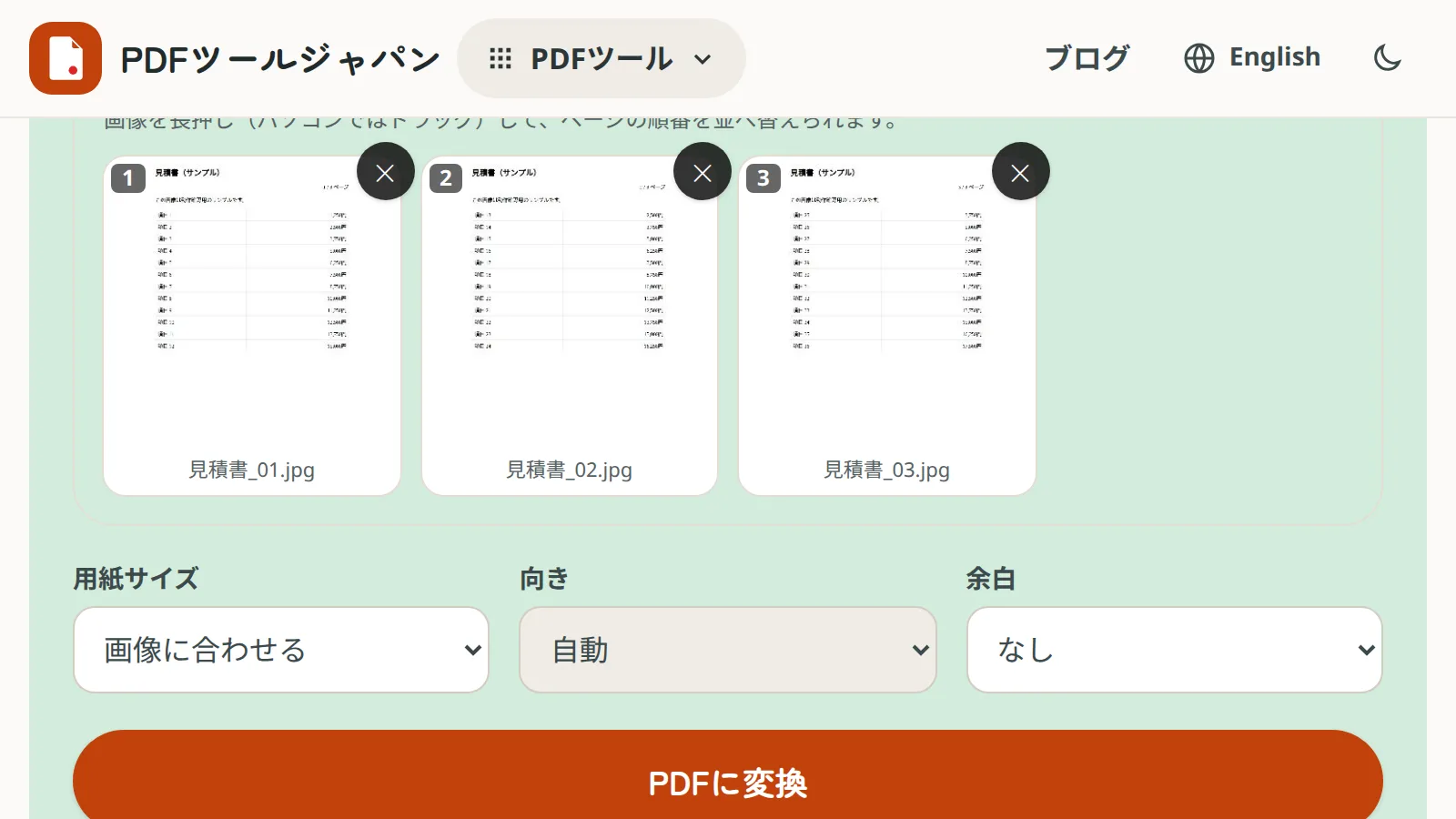
Use PDF to JPGFree, no sign-up. Your files stay on your device.Screenshot: three sample page images loaded into JPG & PNG to PDF, with page size “Fit to image” and margin “None”

What “Print as image” does

A normal print job sends the PDF’s text and vector graphics to the printer, which builds each page itself. If the printer struggles with a font or a complex drawing, you get garbled characters or missing parts.

“Print as image” makes your computer turn each page into a single picture first and sends that instead. The printer only has to print a picture, so font and graphics problems go away.

When to try it

  • Text prints as boxes, symbols or the wrong characters
  • Some text, graphics or table lines are missing
  • The layout on paper differs from the screen
  • The printer stops part-way or shows an error
  • Text typed into form fields or comments doesn’t print

All of these usually mean the printer can’t handle something inside the PDF.

Print as image in Acrobat Reader

The free Adobe Acrobat Reader has this setting.

  1. Open the PDF in Acrobat Reader and choose File > Print
  2. Click the “Advanced” button
  3. Tick “Print As Image” and click OK
  4. Print as usual

The setting may stay on for later print jobs. Once your problem is solved, turn it off again: normal printing is faster.

Browser PDF viewers (Chrome, Edge) and Mac Preview have no such setting. Turn the PDF into images with one of the methods below, then print that.

“Save a PDF as an image” can mean two things

What you need depends on what you want to do with it.

Two ways to save a PDF as images
One image per page (JPG/PNG)Image-only PDF
ResultOne picture file per pageA single PDF whose pages are pictures
Good forSharing on LINE or social media, pasting into slides, forms that only accept imagesAvoiding print problems, locking typed-in form entries, making it look the same on any computer
ToolsPDF to JPG, PDF to PNGPDF to JPG, then JPG & PNG to PDF

Method 1: Save each page as a JPG

PDF to JPG converts every page at once in your browser. The PDF isn’t uploaded; it is processed on your device.

  1. Choose the PDF in PDF to JPG
  2. Pick a resolution (Standard, 150 dpi, for screens; High, 300 dpi, for printing)
  3. Click “Convert to JPG” and download the images one by one or as a ZIP

For crisp text and thin lines with no JPEG blur, use PDF to PNG instead.

Method 2: Make an image-only PDF (for printing problems)

Turn the pages into images, then put them back into a PDF. It looks the same, but every page is now a picture, so it displays and prints the same way almost everywhere.

  1. In PDF to JPG, choose High (300 dpi) resolution and High quality, and convert all pages
  2. Load the images into JPG & PNG to PDF in page order (the file names end in _01, _02 …)
  3. Set page size to “Fit to image” and margin to “None”, then click “Convert to PDF”

Printing this PDF has almost the same effect as Acrobat’s “Print as image”.

If black and white is fine, PDF to Grayscale produces an image-only PDF in a single step.

Things to know before you convert

You can no longer select, search or copy text

The text becomes part of a picture. Keep the original PDF if you might need the text later. To get text back out of an image-only PDF, use OCR.

Files get bigger

A text-heavy PDF can grow several times larger as images. At 300 dpi, ten or more pages may be too big to email. If there is an upload limit, use 150 dpi or run the result through Compress PDF.

It isn’t copy protection

Text can’t be selected, but OCR can still read it. If the content is confidential, add a password instead.

Links and bookmarks disappear

Links, bookmarks and form-field functions are gone. Anything typed into fields stays visible as part of the image.

If it still won’t print

  • Update the printer driver from the manufacturer’s website
  • Open and print the PDF in a different viewer or browser
  • For convenience-store multifunction printers, uploading an image-only PDF helps avoid garbled text
  • If only some pages are wrong, take them out with Split PDF and test those alone

Frequently asked questions

Q. Does the free Acrobat Reader have “Print as image”?

A. Yes. Click “Advanced” in the print dialog and tick “Print As Image”.

Q. Does printing as an image look worse?

A. For ordinary documents you will hardly see a difference. Very small text and thin lines can be slightly softer, and printing can take longer.

Q. How do I save a PDF as an image?

A. For one picture per page, use PDF to JPG. For a single PDF made of images, use PDF to JPG and then JPG & PNG to PDF. Both are free and run in your browser.

Q. Can I turn an image-only PDF back into normal text?

A. Not exactly: the text data is gone, so keep the original. OCR can read the text back out if you need it.

Q. Can I do this on a phone?

A. Yes. Open PDF to JPG in Safari (iPhone) or Chrome (Android) and choose the PDF. No app is needed.