Skip to content
PDF Tools Japan

How to Add a Handwritten Signature to a PDF – Free Methods Compared, and Digital Signatures Explained

A PDF arrives with “please sign and return”. Printing it, signing and scanning it again takes time. Adding your handwritten signature straight to the PDF lets you sign and send it back from your computer or phone. This guide compares the free ways to do that on each device, and explains how this differs from a certificate-based digital signature.

Use Sign PDFFree, no sign-up. Your files stay on your device.Screenshot: Sign PDF with a sample PDF loaded

Handwritten signatures vs. digital signatures

“Signing” a PDF can mean two different things. Knowing which one you need tells you which method to use.

  • Handwritten signature (a signature image): an image of your signature placed on the PDF. It looks like a signature on paper and is used for applications, consent forms and internal documents
  • Digital signature: uses a certificate to prove who signed and that the document hasn’t changed since. It’s used by e-signature services for contracts and other documents that need legal proof

When someone simply asks you to “sign and return”, a handwritten signature is usually enough. If they ask for a digital signature or an e-contract, use the service they specify.

Free ways to add a handwritten signature

Free ways to add a handwritten signature to a PDF
MethodDevicesInstall neededBest for
Adobe Acrobat Reader (free) Fill & SignComputer and phoneYesYou already use Acrobat Reader
Mac PreviewMacNoSigning on a Mac
iPhone MarkupiPhone and iPadNoSigning a PDF from an email right away
Microsoft Edge DrawWindowsNoWriting with a pen or mouse on Windows
Print, sign and scanAnyNoYou have a printer and scanner
This site’s Sign PDFAny device (browser)NoThe same steps on any device, including a photo of your signature on paper

Signing with Acrobat Reader (free)

Open the PDF in Adobe Acrobat Reader, choose Fill & Sign, then Sign → Add signature. Type your name, draw it, or use an image of your signature, then place it anywhere on the page. It works in the desktop app and the phone app.

Signing with Mac Preview

Open the PDF in Preview and click the Signature button on the Markup toolbar. Draw with your finger on the trackpad or hold a signature written on white paper up to the camera, then place it and save.

Signing on an iPhone (Markup)

Open the PDF from an email attachment or the Files app and tap the Markup button (the pen icon). Tap “+” → Add Signature, sign with your finger and place it. Nothing to install.

Writing on a PDF in Edge on Windows

Open the PDF in Microsoft Edge and use Draw on the toolbar to write with a mouse or pen. A neat signature is hard to draw this way, and its position and size are hard to adjust afterwards.

Adding a handwritten signature in your browser (no upload)

This site’s Sign PDF works the same way on Windows, Mac, iPhone and Android. It can also turn a photo of your signature on white paper into a transparent signature. Neither your PDF nor your signature is uploaded.

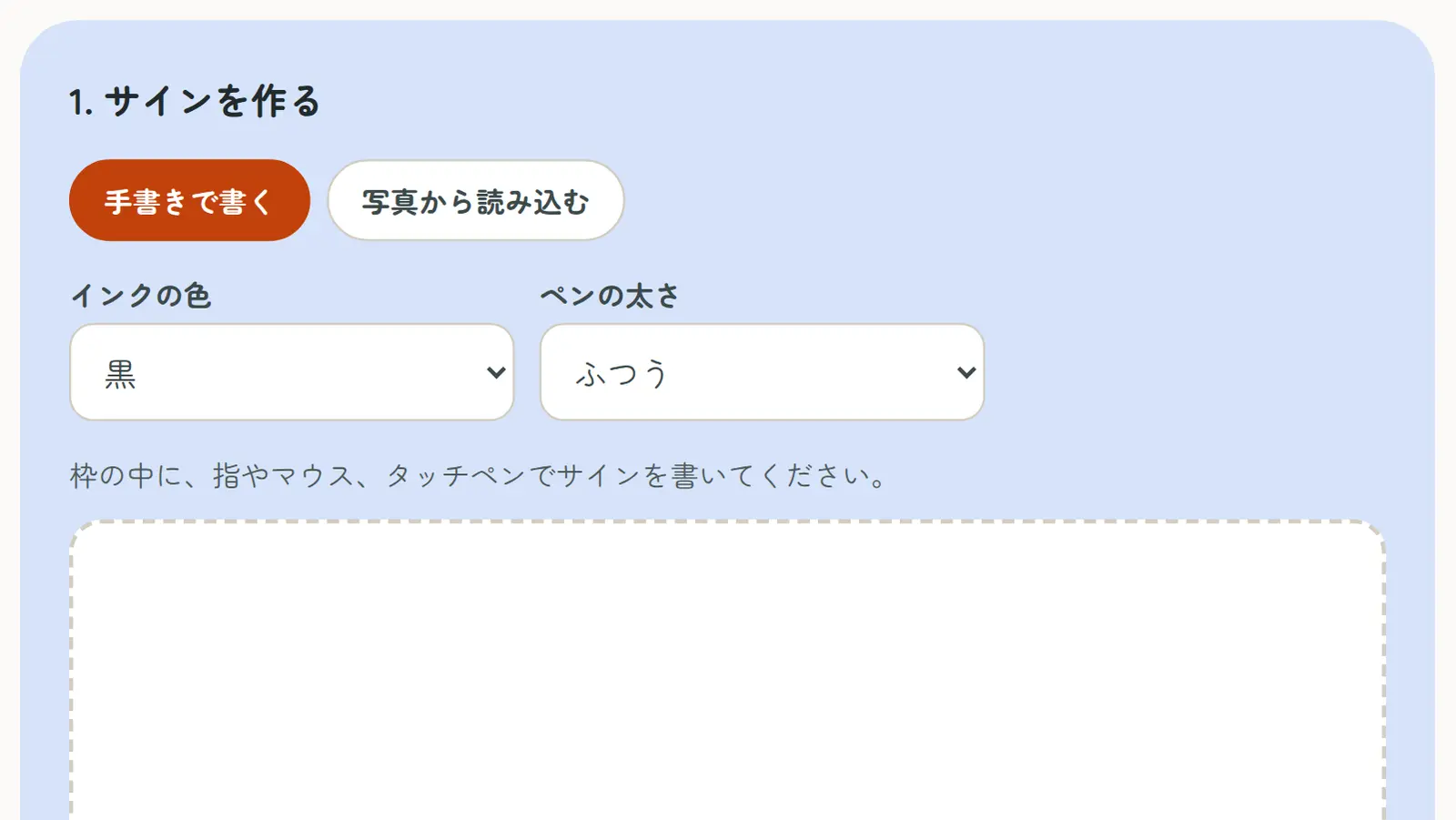
  1. On Sign PDF, draw your signature in the box with your finger or mouse (or use a photo of it on paper)
  2. Choose the PDF to sign
  3. Tap where the signature goes, drag to adjust it, and choose a width from 20 to 80mm
  4. Tap “Create signed PDF”, check the preview and download

Signing Japanese documents

Japanese forms often say 署名または記名押印 (“signature, or printed name with a seal”) by the signature field. Whether a signature alone is enough or a hanko seal is also needed depends on the recipient; many offices accept a signature from foreign residents. If you need a seal, make one with the Digital Hanko Stamp maker and stamp the same PDF. To type your name or the date, use Add Text to PDF.

Things to check when signing

  • Keep your signature image and signed PDFs somewhere others can’t use them
  • Before sending, check the signature’s position and that nothing else is left blank
  • For important documents, consider adding a password before sending

Frequently asked questions

Q. Can I add a handwritten signature to a PDF for free?

A. Yes. Acrobat Reader’s Fill & Sign, Mac Preview, iPhone Markup and this site’s Sign PDF are all free.

Q. Can I sign a PDF on my phone?

A. On an iPhone, use Markup → Add Signature. On any phone, including Android, open Sign PDF in your browser and sign without an app.

Q. Can I use a signature I wrote on paper?

A. Yes. In Sign PDF, choose “Use a photo” and pick a photo of your signature on white paper; the background becomes transparent. Mac Preview can also read a signature with the camera.

Q. Is a handwritten signature a digital signature?

A. No. A signature image isn’t a certificate-based digital signature. Where one is required, such as for some contracts, use an e-signature service or follow the recipient’s instructions.

Q. Is there a free way to use digital signatures?

A. Some e-signature services offer free plans with limits, such as on the number of documents sent. If the other party names a service, use that one.

Q. Can I add both a signature and a hanko seal?

A. Yes. Sign the PDF with Sign PDF, then open the signed PDF in the Digital Hanko Stamp maker and add your seal.