Skip to content
PDF Tools Japan

How to Copy Text from an Image or Scanned PDF – Free OCR Compared, Including Japanese

You want the text in a photo or scanned PDF without typing it again, or you need to translate a Japanese letter you can’t read. That’s what OCR (text recognition) does, and phones and computers now have it built in. This guide compares the options on each device, how to turn a multi-page PDF into text, and how to get better results.

Use OCR (Text Recognition)Free, no sign-up. Your files stay on your device.Screenshot: OCR (Text Recognition) with sample images loaded

First: is your PDF really an image?

PDFs made from Word or Excel already contain text. Open the PDF and try to select some text: if you can, you don’t need OCR. PDF to Word gets the text out faster and more accurately.

If you can’t select the text (a scanned PDF or one made from photos), the text is an image and needs OCR.

The ways compared

The free Adobe Acrobat Reader has no OCR; you need paid Acrobat Pro.

Ways to read text from images and PDFs
MethodDevicesIs the file uploaded?Best for
Live TextiPhone, iPad, MacNoCopying a few lines from a photo
Google LensAndroid, iPhone (app)Yes (processed by Google)Reading text with your phone camera
Snipping Tool Text ActionsWindows 11NoCopying text shown on your screen
Google Drive (Google Docs)AnyYes, to Google DriveShort PDFs, if you have a Google account
Our OCR toolAny (browser)No (processed on your device)Multi-page PDFs, vertical Japanese, saving as Word or a searchable PDF

iPhone and Mac: Live Text

On iPhone, open a photo in Photos and press and hold the text to select and copy it. The Live Text button (lines inside a frame) at the bottom right makes all the text in the photo selectable. You can also point the camera at text and tap the same button.

On a Mac, you can drag to select and copy text in images opened in Preview or Photos. Recent versions of iOS and macOS read Japanese too.

Android: Google Lens

Open Google Lens and point the camera at the text, or open a photo in Google Photos, tap Lens and choose Text. Select the text and tap Copy to paste it elsewhere. Lens can also translate the text in place. Images are processed by Google’s services.

Windows: Snipping Tool

In Windows 11, take a snip with the Snipping Tool and a Text Actions button appears in the toolbar. Tap it to make the text selectable, then Copy all text. It works for whatever you can show on screen.

Google Drive

Upload a PDF or image to Google Drive, right-click it and choose Open with → Google Docs. A document with the recognized text is created.

The file is uploaded to Google Drive and the original layout is lost. There are also limits on file size and pages, so long PDFs may not be read in full.

Turn a multi-page PDF into text (no upload)

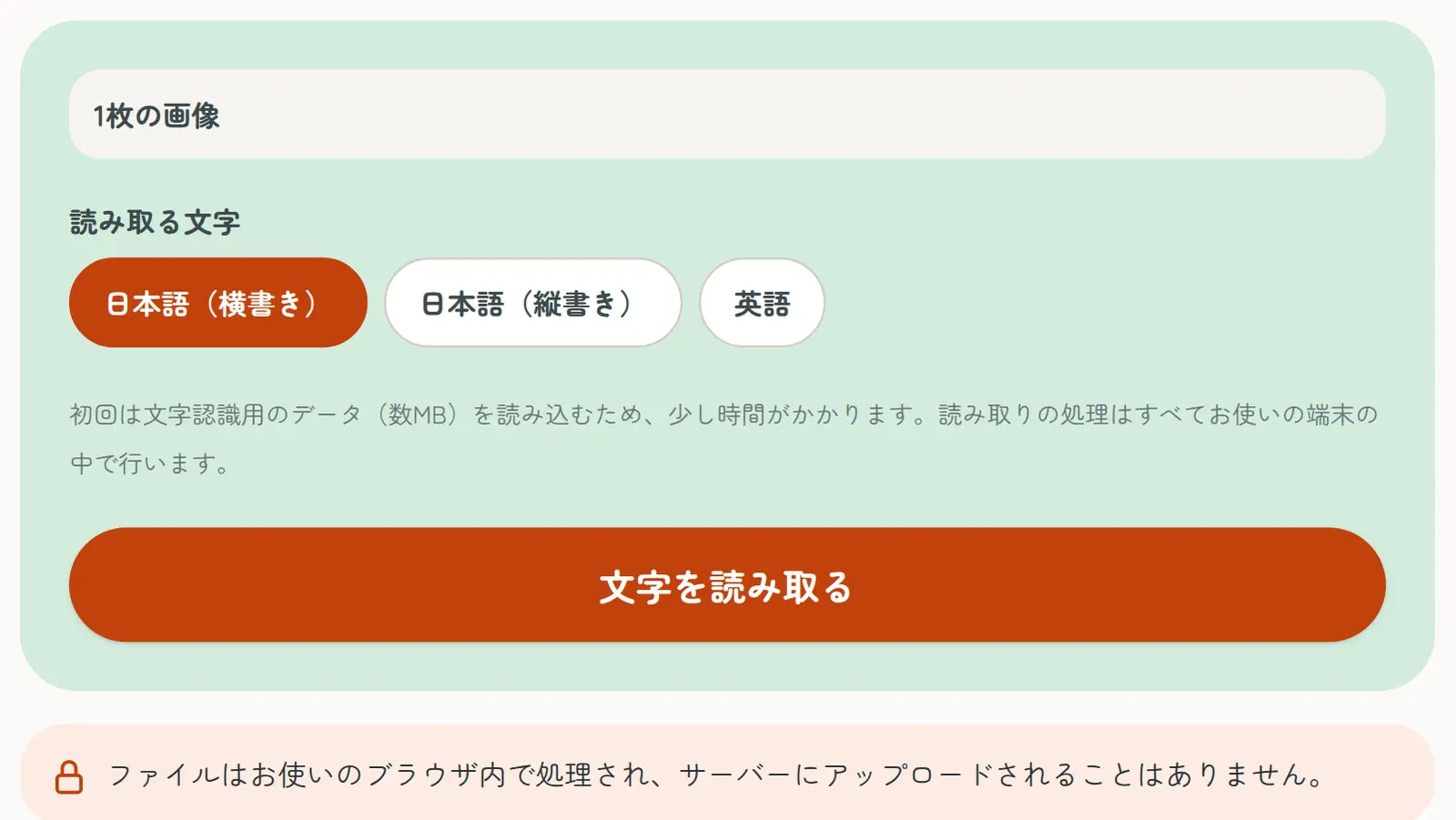
Our OCR tool reads multi-page scanned PDFs and several images at once, in your browser. Recognition runs on your own device and your files are never uploaded.

  1. On the OCR page, select a PDF or images
  2. Choose the language: Japanese (horizontal or vertical) or English
  3. Tap the button to start reading (the first time takes a little longer)
  4. Check and correct the text, then copy it or save it as text or Word. You can also create a searchable PDF that looks like the original

Translating Japanese documents

For letters from the city office, school notices or contracts in Japanese, read the text with OCR, then paste it into Google Translate or DeepL. Choose “Japanese (vertical)” for documents written top to bottom. Always check numbers, dates and names against the original: OCR can confuse similar characters such as 力 (power) and カ (katakana ka).

Tips for better accuracy

  • Photograph the document straight on in good light, avoiding shadows, glare and blur
  • If the text is small, fill the frame with the part you need
  • Fix sideways or tilted pages first
  • Choose the vertical setting for vertical Japanese
  • Compare numbers, names and look-alike characters with the original

Handwriting and decorative fonts are harder to read. For large volumes of handwritten forms, consider a paid AI OCR service.

Frequently asked questions

Q. Can I copy text from an image for free?

A. Yes. Live Text, Google Lens, the Snipping Tool, Google Drive and our OCR tool are all free.

Q. How do I turn a scanned PDF into text?

A. For multi-page PDFs, read them with our OCR tool and save the result as text or Word. Short PDFs also work in Google Drive.

Q. Can it read vertical Japanese?

A. Yes. Choose “Japanese (vertical)” in our OCR tool.

Q. Can the free Adobe Acrobat Reader do OCR?

A. No. OCR is a feature of paid Acrobat Pro.

Q. How do I translate a Japanese document I can’t read?

A. Read it with OCR, then paste the text into Google Translate or DeepL. Check numbers and names against the original.

Q. Is it safe to read documents with personal details?

A. With our OCR tool, images and PDFs are never sent to a server; everything is processed on your device.