Skip to content
PDF Tools Japan

How to Watermark a Copy of Your ID – What to Write, How to Place It, and How to Do It on Your Phone

In Japan you often send a photo or PDF of your ID: for a part-time job, an apartment, a phone contract or an online account. One simple way to stop that copy being leaked or reused for something else is to watermark it with who it’s for, what it’s for and the date. This guide explains what to write, how to place it, and how to do it on a phone or computer.

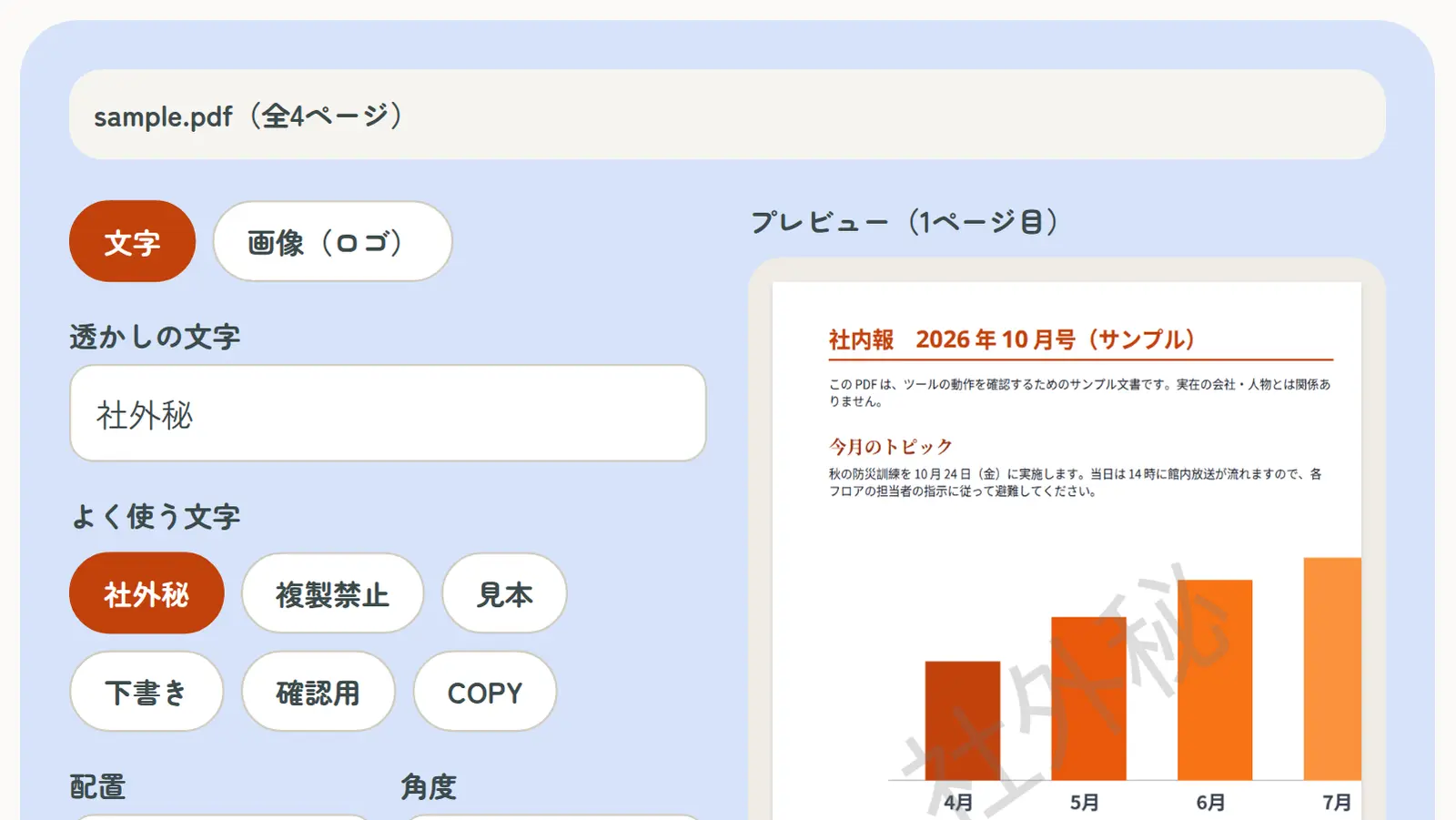
Use Watermark PDFFree, no sign-up. Your files stay on your device.Screenshot: Watermark PDF with a sample PDF loaded

Why watermark a copy of your ID

An ID image has everything needed to impersonate you: name, address, date of birth and photo. A watermark like “For ABC Corp. only” makes the image hard to reuse for another application, and if it leaks, it shows where it came from.

A watermark doesn’t make misuse impossible, but it’s a quick and widely used safeguard.

What to write

Include these three things:

  • Who it’s for: the company, landlord or service
  • What it’s for: “identity check only”, “for the rental application only”
  • When: the date or month you send it

Example: “ABC Corp. ID check only, October 2026”. Japanese recipients may find a Japanese version clearer, such as 「〇〇株式会社 本人確認用 2026年10月」; the tool supports Japanese text.

How to place it

  • Let it overlap part of the photo and name (a watermark only in the margin can simply be cropped off)
  • Tile it across the whole page so it survives cropping
  • Keep it light (about 20–40% opacity) so the details stay readable
  • Use a different watermark for each recipient, and keep an unmarked original yourself

Check before you send

Some recipients require an unedited image. In particular, online identity checks where you photograph your ID with your phone’s camera (eKYC) won’t accept edited images. If you’re not sure a watermark is OK, ask first.

The back of the My Number card shows your Individual Number. Send only the front unless you’re specifically asked for the number.

Ways to watermark an ID copy

Text added in a phone photo editor usually sits in one spot only, which is easy to crop off.

Ways to watermark a copy of your ID
MethodDevicesBest for
Text in iPhone Photos MarkupiPhoneQuickly adding text to one photo
An Android photo editor’s text toolAndroidQuickly adding text to one photo
Word’s WatermarkComputerPasting the ID image into a Word document
This site’s Watermark PDFAny device (browser)Tiling a light watermark, front and back in one PDF

Watermarking an ID PDF on your phone or computer (no upload)

With this site’s tools you can put your ID photos into one PDF and tile a light watermark across every page. Neither the photos nor the PDF is uploaded; everything runs on your device.

  1. In JPG & PNG to PDF, put the photos of your ID (front, and back only if needed) into one PDF
  2. Open Watermark PDF and choose that PDF
  3. Type your text, such as “ABC Corp. ID check only, October 2026” (up to 40 characters)
  4. Set the layout to “Tiled across the page”, choose opacity, color and size, and check in the preview that the details are still readable
  5. Tap “Add watermark” and download the PDF

If the recipient wants an image (JPG), turn the watermarked PDF back into images with PDF to JPG.

Other documents

Watermarks also work for “CONFIDENTIAL” on internal documents, “SAMPLE” on quotes, or “DRAFT” on work in progress. For important documents, consider adding a password as well.

Frequently asked questions

Q. What should I write on a copy of my ID?

A. Who it’s for, what it’s for and the date, for example “ABC Corp. ID check only, October 2026”.

Q. Should the watermark cover my photo?

A. Overlapping the photo makes it harder to crop off. Keep it light so your face and details stay visible.

Q. Could a watermarked ID be rejected?

A. Yes. Online identity checks that use your phone’s camera (eKYC) don’t accept edited images. If unsure, ask the recipient.

Q. Do I need to send the back of my My Number card?

A. The back shows your Individual Number, so send it only when you’re asked for the number.

Q. Can I do it on my phone only?

A. Yes. iPhone Markup can add text to a photo, and this site’s tools make a PDF with a tiled watermark in your phone’s browser.

Q. Is it safe to process my ID with these tools?

A. This site’s tools don’t send your photos or PDFs to a server; they’re processed on your device only.