Skip to content
PDF Tools Japan

Can’t Open HEIC Files? How to Turn iPhone Photos into JPG

You sent iPhone photos to your computer and they won’t open, or an online form says the file type isn’t supported. Usually the reason is that the photos are saved as HEIC. This guide explains why HEIC files don’t open everywhere, how to convert them to JPG on Windows, Mac and iPhone, and how to make your iPhone save new photos as JPG.

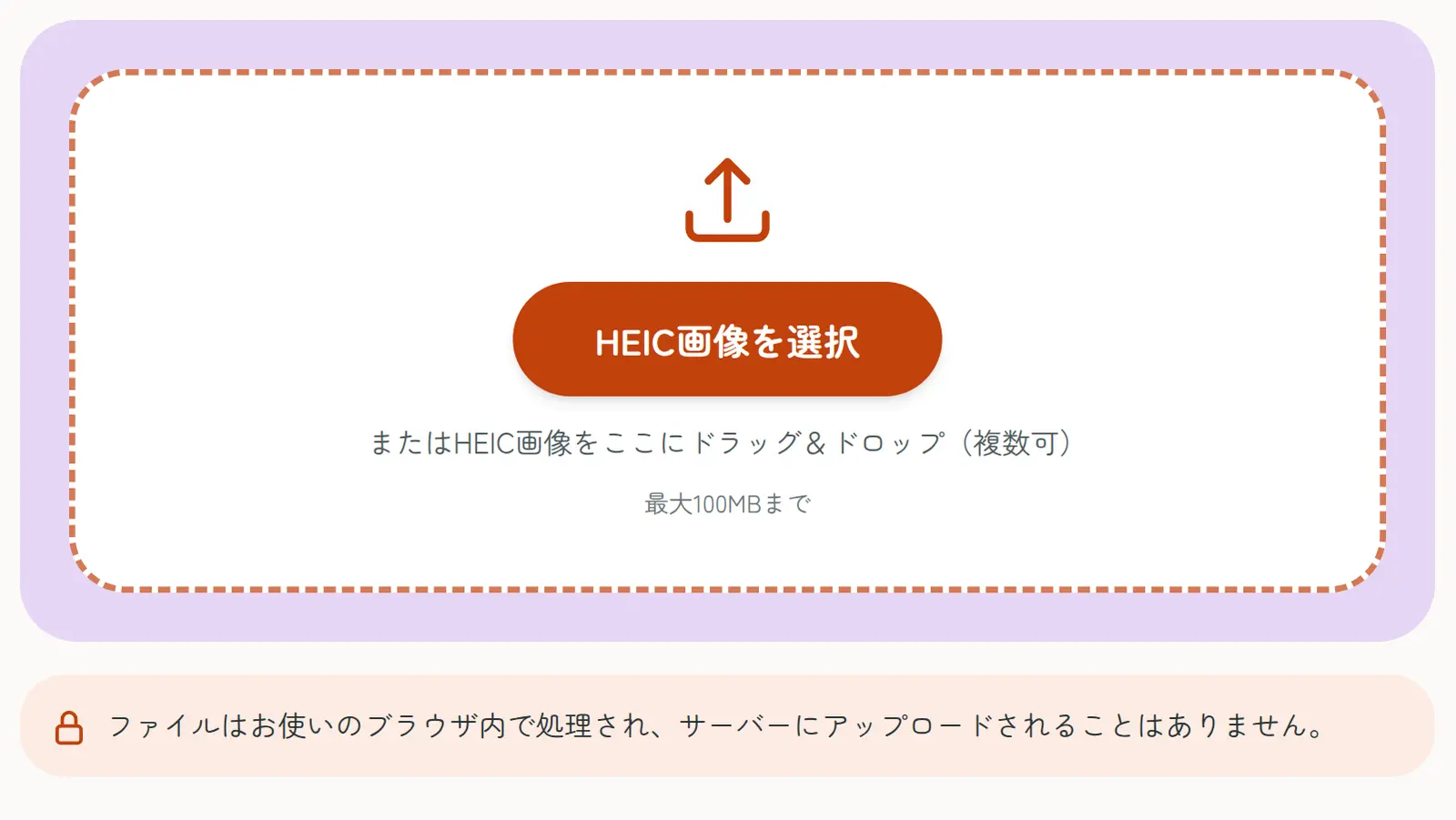
Use HEIC to JPGFree, no sign-up. Your files stay on your device.Screenshot of this site’s HEIC to JPG tool

Why HEIC files won’t open

HEIC (HEIF) is the image format iPhones use for photos. It keeps the same quality as JPG in a smaller file, but not everything supports it.

  • Windows PCs: without the right extension, the Photos app may not open HEIC files
  • Online forms and application sites: many only accept JPG, PNG or PDF
  • Older software and some apps: may not support HEIC at all

In every case, converting the photo to JPG makes it open and upload almost anywhere.

Ways to open HEIC or convert it to JPG

Many online HEIC converters exist, but most upload your photos to a server. For photos of ID cards or documents, choose a method that doesn’t upload them.

Ways to open HEIC or convert it to JPG
MethodDevicesCostBest for
Install Windows extensionsWindows 10 and 11Free to paid (depends on the extension)Viewing HEIC on Windows from now on
iPhone “Most Compatible” settingiPhoneFreeSaving new photos as JPG
iPhone “Transfer to Mac or PC: Automatic”iPhone to PC (cable)FreeImporting photos over a cable
Mac Preview or Quick ActionsMacFreeConverting photos on a Mac
This site’s HEIC to JPGAny device (browser)FreeConverting existing photos right away, many at once

Opening HEIC on Windows

On Windows 10 and 11, installing “HEIF Image Extensions” from the Microsoft Store lets the Photos app show HEIC files. Some photos also need “HEVC Video Extensions”, which may be paid.

Even with the extensions, websites and other software may still not accept HEIC. For uploading to a form, converting to JPG is the reliable fix.

Making your iPhone save new photos as JPG

Go to Settings → Camera → Formats and choose “Most Compatible”. New photos are saved as JPG; existing photos don’t change. Choose “High Efficiency” to go back to HEIC.

If you import photos to a Windows PC with a cable, set Settings → Photos → “Transfer to Mac or PC” to “Automatic”, and they’re converted to JPG as they’re imported.

Converting to JPG on a Mac

Open the HEIC photo in Preview, choose File → Export and set the format to JPEG. To convert several at once, select them in Finder, right-click and choose Quick Actions → Convert Image.

Converting many photos in your browser (no upload)

This site’s HEIC to JPG converts HEIC photos on Windows, Mac, iPhone and Android with no software or app to install. Your photos aren’t uploaded; they’re converted on your device.

  1. Open HEIC to JPG and choose your HEIC photos (several at once is fine)
  2. Choose the output format (JPG, PNG or PDF) and quality
  3. Tap “Convert”
  4. Download them one by one, or all at once as a ZIP

Uploading photos to Japanese application forms

Japanese job sites, school portals and government services such as online residence and My Number applications usually accept only JPG or PNG, often with a size limit like “under 200KB”. Convert the HEIC photo to JPG first, then shrink it with Compress Images if needed. Several document photos can be combined into one PDF with JPG & PNG to PDF, and ID photos can be cropped to Japanese sizes with ID Photo Maker.

Frequently asked questions

Q. What’s the difference between HEIC and JPG?

A. Both are photo formats. HEIC makes smaller files at the same quality but doesn’t open everywhere; JPG works on almost every computer, phone and website.

Q. Can I open HEIC on Windows for free?

A. Sometimes, with “HEIF Image Extensions” from the Microsoft Store. Some photos also need the paid “HEVC Video Extensions”. You can also convert to JPG in your browser without installing anything.

Q. Can my iPhone take photos in JPG?

A. Yes. Choose Settings → Camera → Formats → “Most Compatible” and new photos are saved as JPG.

Q. Does converting to JPG lower the quality?

A. JPG loses a little quality when saved, but at a high quality setting the difference is hard to see.

Q. Can I convert many photos at once?

A. Yes. HEIC to JPG converts several photos together and downloads them as a ZIP. On a Mac, Finder’s Quick Actions can also convert several at once.

Q. Is it safe to convert photos of my ID?

A. With this site’s HEIC to JPG, photos aren’t sent to a server; they’re converted on your device only.