Skip to content
PDF Tools Japan

How to Convert Excel to PDF – Fit a Sheet on One Page and Fix Cut-Off Columns

You want to send a quote or invoice as a PDF, but the right side of the table gets cut off, or one table spreads over several pages. Page problems are the most common trouble when turning Excel into a PDF. This guide covers how to convert Excel to PDF, the settings that fit a sheet on one page, and how to convert without Excel or on a phone.

Use Excel to PDFFree, no sign-up. Your files stay on your device.Screenshot: Excel to PDF with a sample Excel file loaded

The ways compared

Ways to convert Excel to PDF
MethodWhat you needIs the file uploaded?Best for
Excel’s Export or Save AsExcel (Windows or Mac)NoYou have Excel and want fine control
Google SheetsA Google accountYes, to Google DriveYou don’t have Excel
Our Excel to PDF toolJust a browser (any device)No (processed on your device)No Excel, on a phone, or sheets with prices or personal details

Method 1: Save as PDF in Excel

In Excel for Windows, choose File → Export → Create PDF/XPS Document → Create PDF/XPS, pick where to save it and click Publish. You can also use Save As and set the file type to PDF. In Excel for Mac, choose File → Save As and set File Format to PDF.

Check File → Print first: the PDF uses the same page settings as printing, so the print preview shows exactly how the PDF will be split into pages.

Settings that fit a sheet on one page

In File → Print, change the setting that says “No Scaling”:

  • “Fit Sheet on One Page”: shrinks the whole table onto one page. Good for small tables.
  • “Fit All Columns on One Page”: fits the width on one page and lets long tables continue onto the next pages. Usually the most readable option for quotes and lists.
  • “Fit All Rows on One Page”: fits only the height on one page.

Setting Page Layout → Scale to Fit to Width: 1 page and Height: Automatic does the same. If many columns make the text too small, switch Page Layout → Orientation to Landscape or use a larger paper size such as A3.

When columns are cut off or pages split

Check the page breaks

View → Page Break Preview shows the page boundaries as blue lines. Drag the dotted blue line to the edge of the table to make it one page.

Check for an old print area

If a print area was set earlier, columns and rows added later aren’t included in the PDF. Clear it with Page Layout → Print Area → Clear Print Area, or set it again.

Blank pages appear

Borders, formatting or spaces left in empty cells outside the table make those cells part of the page, creating blank pages. Delete the unused rows and columns before saving.

Numbers show as “###”

When a column is too narrow, numbers appear as “###”, and the PDF shows the same. Widen the column or turn on Wrap Text.

Combining several sheets into one PDF

In Excel’s Export, open Options and choose “Entire workbook” to put every sheet in one PDF. To include only some sheets, Ctrl-click their tabs and choose “Active sheet(s)”.

Our Excel to PDF tool also combines several sheets into one PDF when you select them.

Method 2: No Excel? Open it in Google Sheets

Upload the Excel file to Google Drive, open it with Google Sheets and choose File → Download → PDF (.pdf). In the settings, set Scale to “Fit to width” to fit the width on one page. This uploads the file to Google Drive.

Method 3: Convert in your browser (no upload, works on phones)

Our Excel to PDF tool converts in the browser on Windows, Mac, iPhone and Android, even without Excel. Your file is never uploaded to a server; it’s processed on your own device, so sheets with prices or personal details stay private.

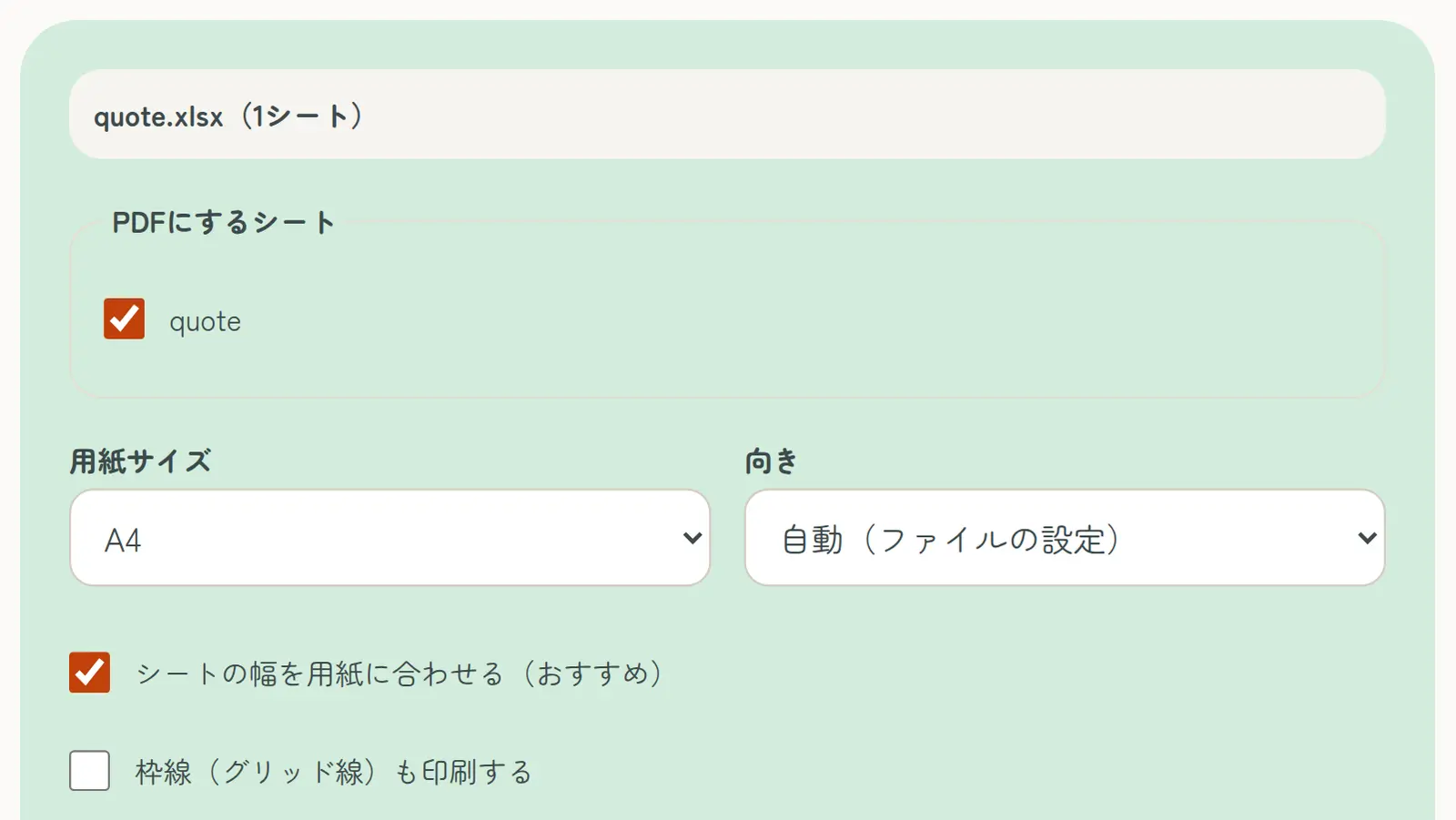
  1. On the Excel to PDF page, select an Excel file (.xlsx) or CSV file
  2. Choose the sheets to include
  3. Choose the paper size and orientation, and turn on “Fit sheet width to the page” (the width fits one page, so nothing is cut off)
  4. Tap “Convert to PDF”, check the preview, and download

Print areas, margins and orientation set in Excel are used as they are. Japanese paper sizes B4 and B5 (JIS) are available for forms made for them, and Japanese CSV files in Shift_JIS are read without garbled characters. Excel files received by email or LINE can be converted on a phone in Safari or Chrome, with no app.

Tools to use after converting

To stamp a Japanese hanko on a quote or invoice, use Digital Hanko Stamp. To combine it with other documents, use Merge PDF, and if it’s too big to email, use Compress PDF.

Frequently asked questions

Q. How do I fit an Excel sheet on one page as a PDF?

A. In File → Print, choose “Fit Sheet on One Page” or “Fit All Columns on One Page”, then save as PDF.

Q. Why is the right side cut off in the PDF?

A. The table is wider than the paper, or an old print area is still set. Choose “Fit All Columns on One Page” or set the print area again.

Q. Can I put several sheets in one PDF?

A. Yes. Choose “Entire workbook” in Excel’s Export options, or select several sheets in Excel to PDF.

Q. Can I make a PDF without Excel?

A. Yes. Use Google Sheets, or the Excel to PDF tool in your browser.

Q. How do I convert Excel to PDF on a phone?

A. Open Excel to PDF in Safari or Chrome and select the Excel file. No app is needed.

Q. Can I convert a CSV file to PDF?

A. Yes. Excel to PDF supports CSV and detects Shift_JIS and UTF-8 automatically, so Japanese text isn’t garbled.