- Reading papers and handouts larger on a phone or tablet
- Printing a PDF with wide margins at a larger size
- Removing shadows or dark edges around scanned pages
- B5 textbooks or handouts scanned onto A4, leaving wide borders
When cropping margins helps
Ways to crop PDF margins
| Method | Cost | Detects margins | Best for |
|---|---|---|---|
| Adobe Acrobat Pro “Crop Pages” | Paid | Yes | You already have Acrobat Pro |
| Adobe Acrobat Reader (free) | Free | — | Can’t crop |
| Mac Preview | Free | No | Cropping a selected area on a Mac |
| This site’s Crop PDF | Free | Yes | Trimming the margins of every page automatically |
Cropping in Mac Preview
Open the PDF in Preview, drag to select the area to keep, then choose Tools → Crop. It doesn’t detect margins, so you choose the area yourself.
Trimming margins automatically in your browser (no upload)
This site’s Crop PDF detects where each page’s content is and trims the white space around it, for all pages at once. It works on Windows, Mac, iPhone and Android, and your PDF is never uploaded.
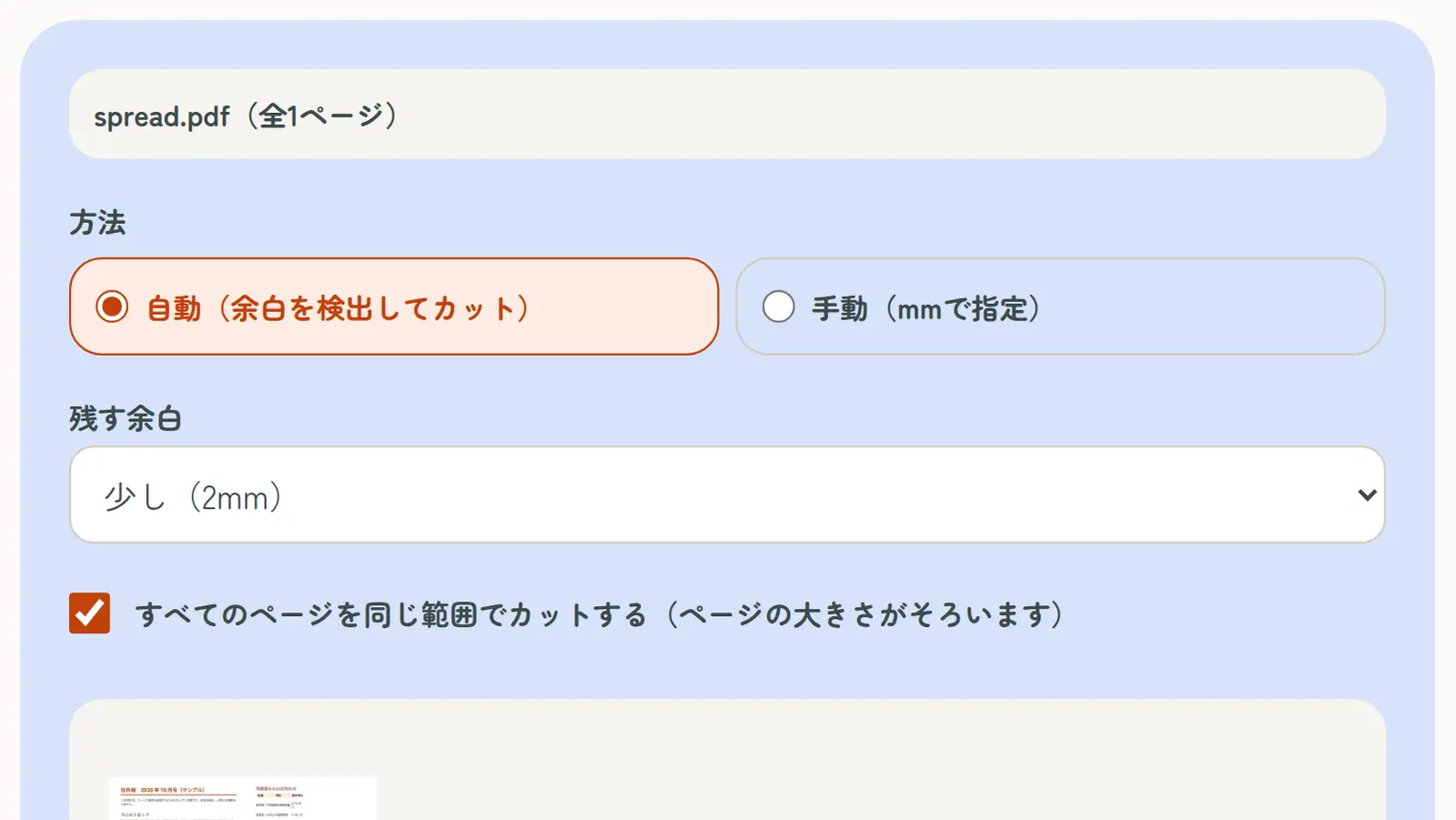
- Open Crop PDF and choose your PDF
- Choose “Automatic (detect and trim margins)” and how much margin to keep
- To keep all pages the same size, tick “Trim every page to the same area”
- Tap “Trim margins”, check the preview and download
To trim a fixed amount, choose “Manual (set in mm)” and enter each side.
Printing larger after cropping
Print the cropped PDF with “Fit to page” (or “Fit to paper”) in the print dialog, and the content is enlarged to fill the paper, making the text bigger and easier to read.
What cropping doesn’t do
Cropping changes the visible area of each page. The trimmed parts are hidden but still inside the PDF, so don’t use cropping to hide personal or confidential information. To remove whole pages, use Delete PDF Pages.
For two-page scans, split them into single pages with Split Two-Page Scans first, then crop the margins.