Skip to content
PDF Tools Japan

How to Make a Japanese ID Photo with Your Phone – From Taking It to Printing at a Convenience Store

Living in Japan, you need ID photos again and again: for your residence card, job applications, the My Number card, a driver’s license. You don’t have to visit a photo booth or studio each time. This guide shows how to take a good photo with your phone, get a photo file for online applications, and print several ID photos cheaply at a convenience store.

Use ID Photo MakerFree, no sign-up. Your files stay on your device.Screenshot: ID Photo Maker with sample images loaded

Ways to get an ID photo compared

Ways to get an ID photo in Japan
MethodTypical costPhoto fileBest for
Photo studioA few thousand yen and upOften includedJob interviews and when quality matters most
Photo booth (shoumei shashin-ki)A few hundred to about 1,000 yenSome machines offer itWhen you need one right away
Your phone + printing yourselfThe price of one L-size printYes, ready to uploadOnline applications, several copies, saving money

Tips for taking the photo

  • Stand in front of a plain white, light blue or light gray wall, a little away from it so there’s no shadow
  • Face a window or another bright light so your face is evenly lit
  • Have someone take it with the rear camera, or prop up your phone and use the timer, rather than a selfie
  • Shoot from about 1m away without zoom, framing from the chest up (too close distorts your face)
  • Keep the camera at eye level, face forward and tuck your chin slightly
  • Keep hair away from your eyes and face, and remove hats and masks

Photos heavily edited with beauty filters may be rejected for ID applications. Keep edits to brightness.

Japanese ID photo sizes

Common sizes are below. Requirements can differ, so always check the instructions.

  • Residence card (zairyu card): 40×30mm (height × width)
  • Résumé (rirekisho) and entry sheets: 40×30mm
  • My Number card: 45×35mm
  • Japanese passport: 45×35mm, with detailed rules such as face size
  • Driver’s license: 30×24mm

Crop the photo to size

Our ID Photo Maker crops your photo to Japanese ID sizes in the browser, with no app to install. Your photo is never uploaded; it’s processed on your own device.

  1. Open ID Photo Maker and select your photo (iPhone HEIC photos work as they are)
  2. Choose the size: résumé, My Number / passport, or driver’s license
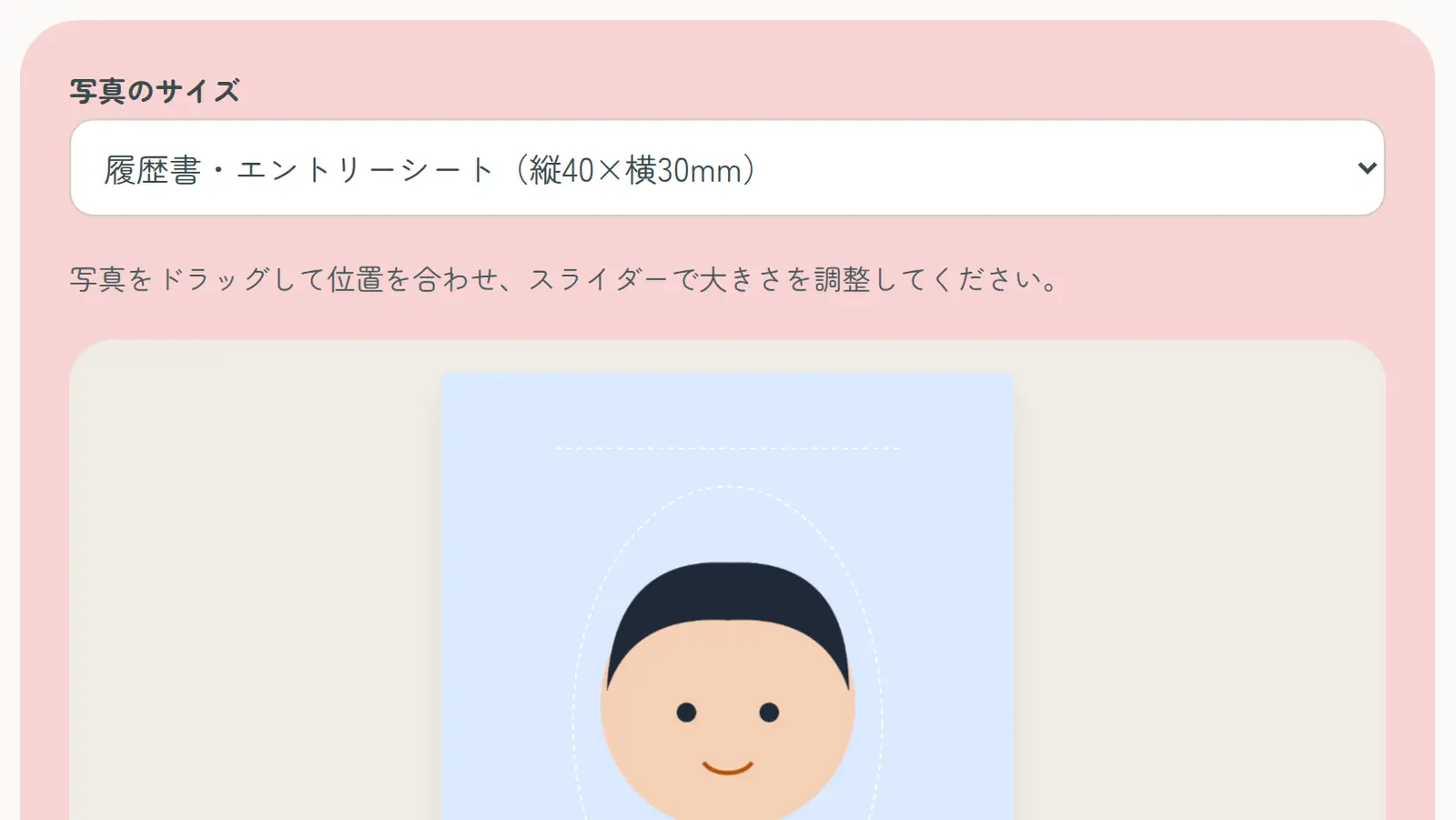
  3. Drag the photo so your face fits the dotted frame, and adjust the size and brightness
  4. Download the single photo for online applications, or the L-size print sheet for printing

Using the photo file in online applications

Upload the downloaded JPG in the photo field of online application forms. For a résumé made in Word, insert it with Insert → Pictures and fit it to the photo box. If the form has a size limit, make the file smaller with Compress Image.

Printing at a convenience store

For paper forms, print the L-size sheet at a convenience store. One L-size print holds 6 résumé-size or residence-card-size photos, or 4 My Number-size photos.

  1. Save the L-size sheet to your phone
  2. Send it with the store’s print app, such as “かんたんnetprint” at 7-Eleven or “PrintSmash” at FamilyMart and Lawson
  3. At the multi-copy machine, choose photo print (写真プリント) at L size (L判)
  4. Cut the photos out neatly with a cutter and ruler

Don’t choose enlarging, reducing or borderless printing, which can change the size or crop the edges. Write your name on the back of each photo before gluing it on, in case it comes off.

Before using it for an official application

The My Number card accepts phone photos that meet its requirements (facing forward, no hat, plain background, taken recently). Residence card photos have their own requirements from the Immigration Services Agency, and passport rules are especially strict.

Check the official photo requirements before applying. If you’re unsure, use a photo booth or studio.

Frequently asked questions

Q. Can I use a phone photo for my residence card?

A. It can be used if it meets the Immigration Services Agency’s requirements, such as size (40×30mm), a plain background and being taken recently. Check the requirements before applying.

Q. What’s the cheapest way to get ID photos?

A. Make an L-size print sheet with ID Photo Maker and print it at a convenience store. One print gives you several photos.

Q. How do I make a photo file for an online application?

A. Crop your photo to size with ID Photo Maker and download the single photo for online submission.

Q. What background color should I use?

A. A plain white, light blue or light gray is common. Follow any color the application specifies.

Q. The size changed when I printed it.

A. Print at L size without enlarging, reducing or borderless settings.

Q. Is my photo sent to a server?

A. With our ID Photo Maker, your photo is never sent to a server; it’s processed on your device.